How To Review Site Settings With BetterShield Hub?
Read password policy, security contact, usage sharing and uninstall choices in Hub, then open WordPress to change them.
BetterShield Hub lets you review a connected WordPress site’s settings before opening its dashboard. Check the password policy, security contact, usage sharing and uninstall choice in one place, then open WordPress when something needs changing.
Note: Connect the site to Hub and sign in with an account permitted to manage it. To change settings, you also need a WordPress account allowed to manage BetterShield. Ultra is not required.
Step 1: Review the Site Settings
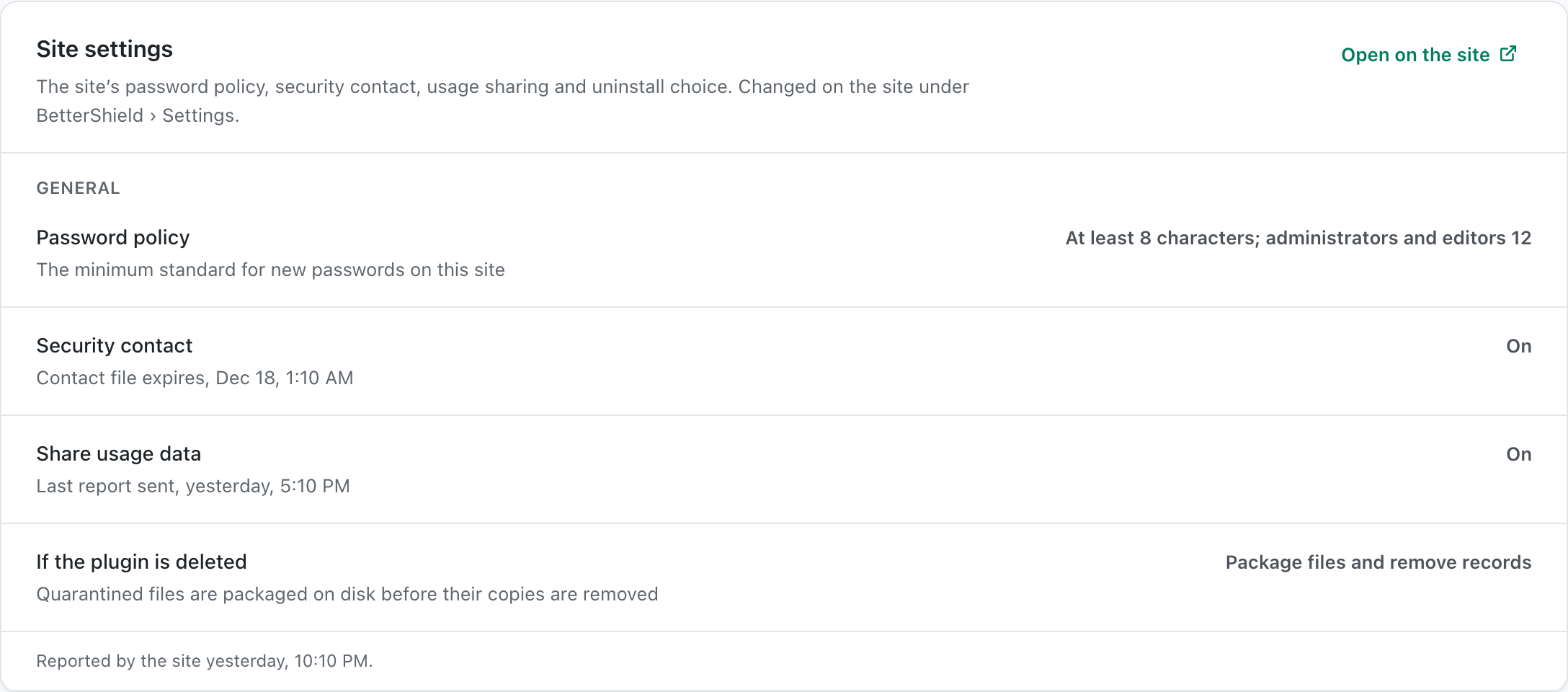
Open Sites in BetterShield Hub and select the connected site. Scroll to Site settings to review these values:
- Password policy: whether the policy is enabled and the minimum password lengths reported by the site.
- Security contact: whether the site publishes a security contact and, when available, its expiry.
- Share usage data: whether sharing is enabled and when the last report was sent.
- If the plugin is deleted: whether the site keeps its data, removes records, or packages quarantined files before removing records.
These rows show the site’s saved choices. They are read-only, even when the Hub connection allows fixes. If the card reports stale or unavailable information, refresh the site before relying on those values.
Step 2: Make Changes in WordPress
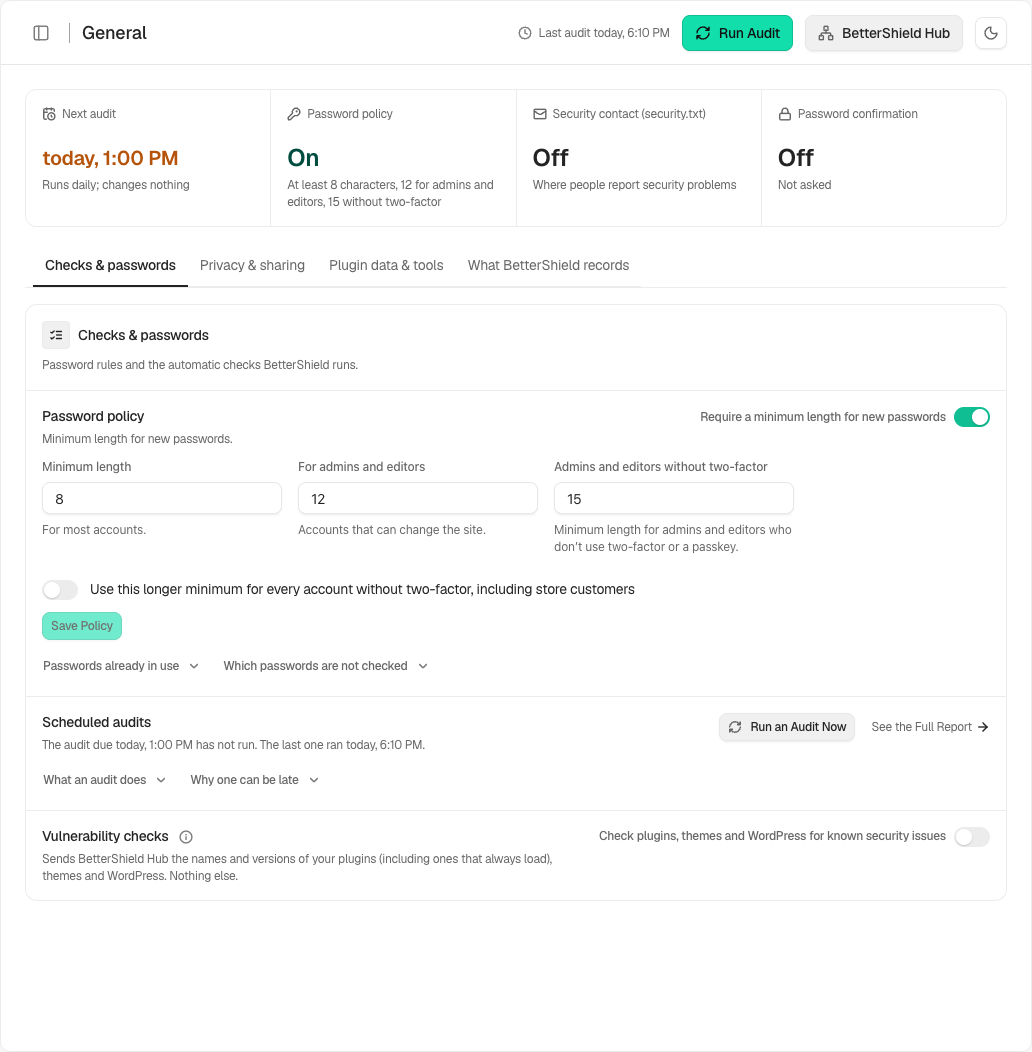
Select Open on the site on the card and sign in to WordPress if asked. The link opens BetterShield → Settings → General.
Choose the setting you need to change. Each setting has its own controls and save behavior:
Follow that setting’s instructions, then return to the site’s Hub page and select Refresh to read the updated values.
Final Outcome
You can now review the site’s current settings in Hub and open the matching WordPress screen to make changes. After a successful refresh, the Hub card reflects the values reported by the site.
This is how you can review site settings with BetterShield Hub.
Getting Stuck? Feel free to contact our Dedicated Support Team.