How To Connect Incident Destinations With BetterShield Ultra?
Use PagerDuty, Opsgenie or help-desk email for one incident thread that follows acknowledgment and resolution.
With BetterShield Ultra, use PagerDuty, Opsgenie or help-desk email for one incident thread that follows acknowledgment and resolution.
Note: These controls require the paid BetterShield Ultra add-on alongside the free BetterShield plugin.
What it does
Open BetterShield › Ultra › Alert channels. PagerDuty and Opsgenie destinations open one alert per incident. A help-desk email destination opens one ticket thread per incident. Acknowledging or handling the incident updates the existing alert or thread instead of opening another for every event.
Step 1: Open Add a Destination
Select Add a Destination, then choose PagerDuty, Opsgenie or Help desk (by email) under Send to.
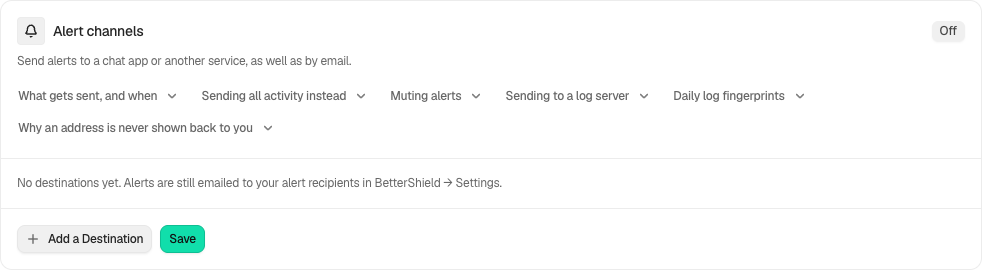
Step 2: Connect Incident Destinations
- Enter a name and the fields for that kind. For help desk, use the address that creates tickets. For a paging service, review its region and connector-key requirements.
- Save the destination before selecting Send a Test Message. A paging test opens and closes a test alert immediately.
- Review delivery in the destination service.
Recommended settings
Our advice: use a test destination first and ensure service-region and connector settings match your account.
What it can break and how to undo
Delivery creates records in another service. Removing a destination stops future sends; it does not erase external tickets. Preserve the real incident’s history while correcting delivery problems.
Final Outcome
Follow one incident from opening through acknowledgment to handled. The external service should update the same alert or help-desk thread, with an appropriate closing message.
Related
This is how you can connect incident destinations with BetterShield Ultra.
Getting Stuck? Feel free to contact our Dedicated Support Team.