How To Choose Alerts for Each Address With BetterShield?
Set instant alerts to high and critical, critical only or none for each address, and choose who gets the weekly summary.
In BetterShield, use BetterShield › Settings › Email alerts › When alerts are sent, and to whom › Where alerts go. Each named address has two controls of its own.
What it does
- Instant alerts sets how serious an alert must be to reach this address at once. High and critical is the default. Critical only skips high alerts. None sends this address no instant alerts.
- Weekly summary is ticked by default. Clear it and this address is left out of the weekly summary.
An alert reaches the addresses whose level it meets. The weekly summary reaches the addresses that take it. The test alert goes to every address.
The controls appear once at least one address is named. With none named, the site administration email gets everything. A new address starts on High and critical with the weekly summary, so adding one is not also a change to anybody else’s choices. Each choice saves as soon as you change it.
At least one address must stay on High and critical, so an urgent alert always reaches someone.
The planned-maintenance closing summary counts as high. It reaches addresses on High and critical, and reaches the others only when something in it is critical.
The site-wide instant-alert and weekly-summary switches must also be on. Both start off on a new install. Per-address choices do not enable them.
Step 1: Open Add an address
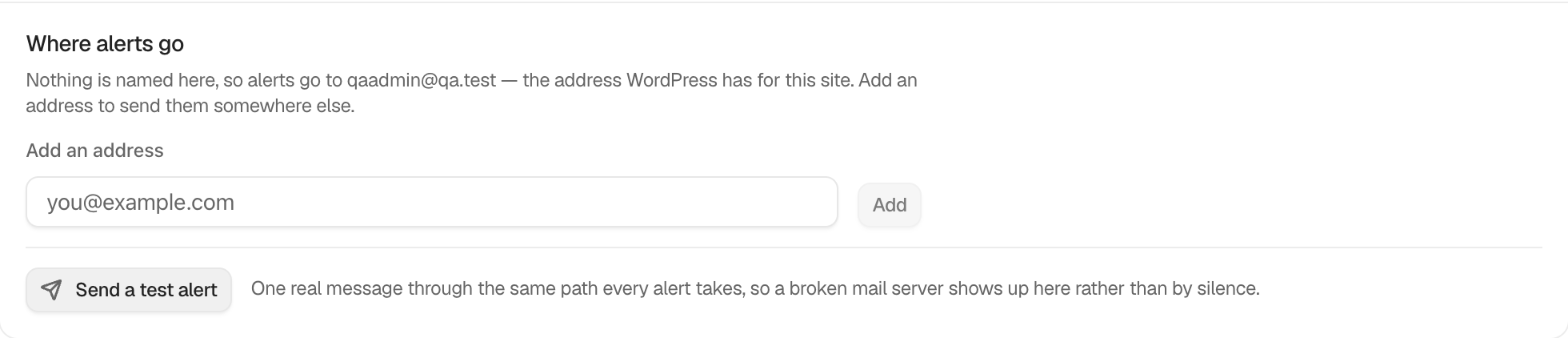
Name the addresses under Add an address.
Step 2: Choose what each address gets
- Beside each address, pick Instant alerts.
- Tick or clear Weekly summary.
| Option | Choices | Default |
|---|---|---|
| Instant alerts | High and critical, Critical only, None | High and critical |
| Weekly summary | Ticked or cleared | Ticked |
Recommended settings
Our advice is to match each address to how that person works.
| Person | Instant alerts | Weekly summary |
|---|---|---|
| The agency or main administrator | High and critical | Ticked |
| A client who only wants the overview | None | Ticked |
| A developer on call | Critical only | Cleared |
What it can break and how to undo
An address on Critical only or None will not hear about a high event until the weekly summary. A change that would leave nobody on High and critical is refused with “Keep at least one address on instant alerts for high and critical events, so an urgent alert always reaches someone. To stop all alerts, use Mute everything.”
Giving an address a lower level, or clearing its Weekly summary, counts as making alerts quieter. With Ask for my password before removing a protection on under Settings › General, BetterShield asks for your password first. The change is recorded as “Alert settings changed” with how many addresses will hear less, never which addresses.
To undo, set the address back, or restore the earlier list from the settings history. Removing an address removes its choices.
Final Outcome
Select Send One Now under Weekly summary and confirm only the ticked addresses receive it. If every address has the box cleared, the screen says “Nothing was sent: every address has the weekly summary turned off.”
On multisite
Recipients and their choices are per site.
Related
- Choose who receives alerts
- Send a weekly security summary
- Send important security alerts straight away
- Hold an event type for the weekly summary
This is how you can choose alerts for each address with BetterShield.
Getting Stuck? Feel free to contact our Dedicated Support Team.