How To Give a Client Read-only Security Access With BetterShield Ultra?
Let named clients read Overview, Findings and past security reports while preserving their WordPress roles.
With BetterShield Ultra, let named clients read Overview, Findings and past security reports while preserving their WordPress roles.
Note: These controls require the paid BetterShield Ultra add-on alongside the free BetterShield plugin.
What it does
Open BetterShield › Ultra › Client report. Read-only access for clients adds access to the site’s Overview, Findings and past reports without granting security-management actions or changing the WordPress role. Up to 20 accounts can be selected.
Step 1: Open Read-only access for clients
Under Read-only access for clients, choose the client’s Account.
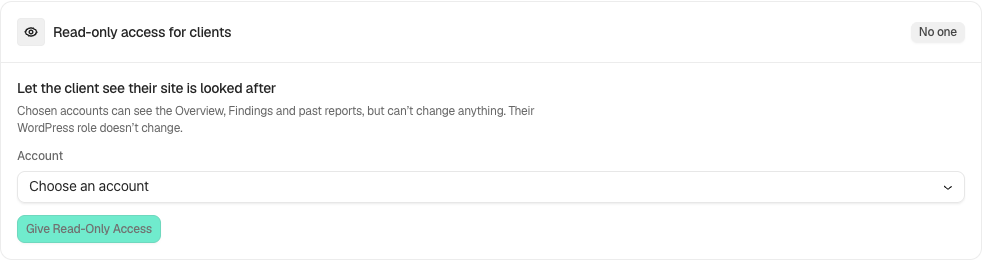
Step 2: Give a client read-only security access
- Select Give Read-Only Access.
- Ask the client to sign in with that account and open the available security screens.
- Use Remove beside an account to end this access.
Recommended settings
Our advice: give access to a named client account and review what the findings and reports disclose before sharing it.
What it can break and how to undo
This shares security information with the chosen account. Removing read-only access ends this extra visibility; it does not remove unrelated rights already provided by that account’s role.
Final Outcome
Test using the client account. It should read the intended screens and reports and have no security-change controls from this grant.
Related
This is how you can give a client read-only Security access with BetterShield Ultra.
Getting Stuck? Feel free to contact our Dedicated Support Team.