How To Send a Weekly Security Summary With BetterShield?
Choose the weekly digest day, who gets it, send one now, and understand the period and information included.
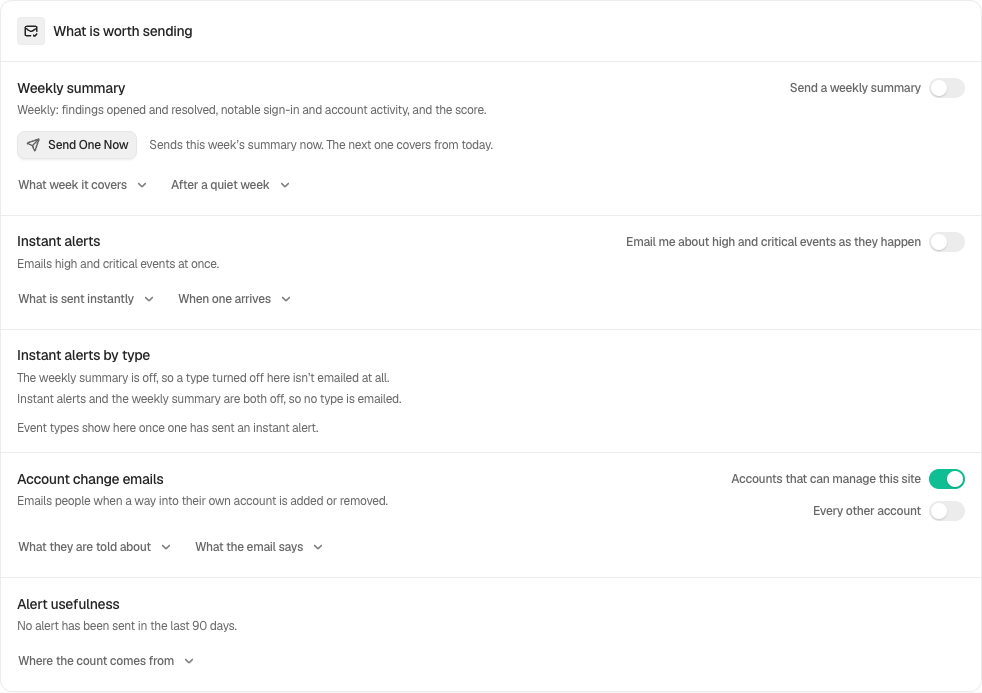
In BetterShield, the controls are under BetterShield › Settings › Email Alerts › What gets emailed › Weekly summary.
What it does
Send a weekly summary starts off on a new install. Turn it on in Quick Setup or Settings. Updating an existing site keeps its saved choice. Day offers Sunday through Saturday and defaults to Monday. The message covers everything since the previous summary, not a fixed seven-day slice, so a delayed week is included rather than skipped. After a quiet week it still arrives, saying so.
The first summary waits until BetterShield has been active for a full day, and it never covers time before BetterShield was there. Installing on the summary day does not send an empty message minutes later.
The email includes the covered dates, current score and grade, open findings, findings opened and resolved, activity by area, and the highest-rated open finding to review next. It also includes any event type you chose to hold for the weekly summary.
Who gets it. Each named address has a Weekly summary box under Where alerts go, ticked by default. Only ticked addresses get the summary. With no address named, the site administration email gets it. If every named address has the box cleared, nothing is sent, and Send One Now says “Nothing was sent: every address has the weekly summary turned off.”
Each recipient reads it in their own language. See Alerts in each person’s language.
Step 1: Send a Weekly Security Summary
Turn the switch on, choose the day, and tick Weekly summary for each address that should get it. Send One Now sends the real summary and starts the next reporting period from that moment.
| Option | What it does | Default |
|---|---|---|
| Send a weekly summary | Sends the summary on the chosen day | Off on a new install |
| Day | Sunday through Saturday, in the site’s time zone | Monday |
| Weekly summary (per address) | Whether that address gets it | Ticked |
Recommended settings
Choose a day when someone will read and act. Keep instant high and critical alerts on for events that should not wait. A client or manager who only needs the overview can be set to Weekly summary only, with Instant alerts on None.
What it can break and how to undo
Sending one now resets the next summary’s starting point. Muting prevents it from being sent. Turn the switch off to stop future weekly messages, or restore the prior setting from history. Clearing the box on an address is a quieter change, so it asks for your password when Ask for my password before removing a protection is on.
Final Outcome
Select Send One Now and confirm WordPress accepted it and every address that should get it received it.
Related
- Choose who receives alerts
- Choose what each address gets
- Send important security alerts straight away
- Mute email alerts
This is how you can send a weekly Security summary with BetterShield.
Getting Stuck? Feel free to contact our Dedicated Support Team.