How To Review a Site's Assistant Connections in BetterShield Hub?
Review a connected site's assistant connections and safeguards from its BetterShield Hub page.
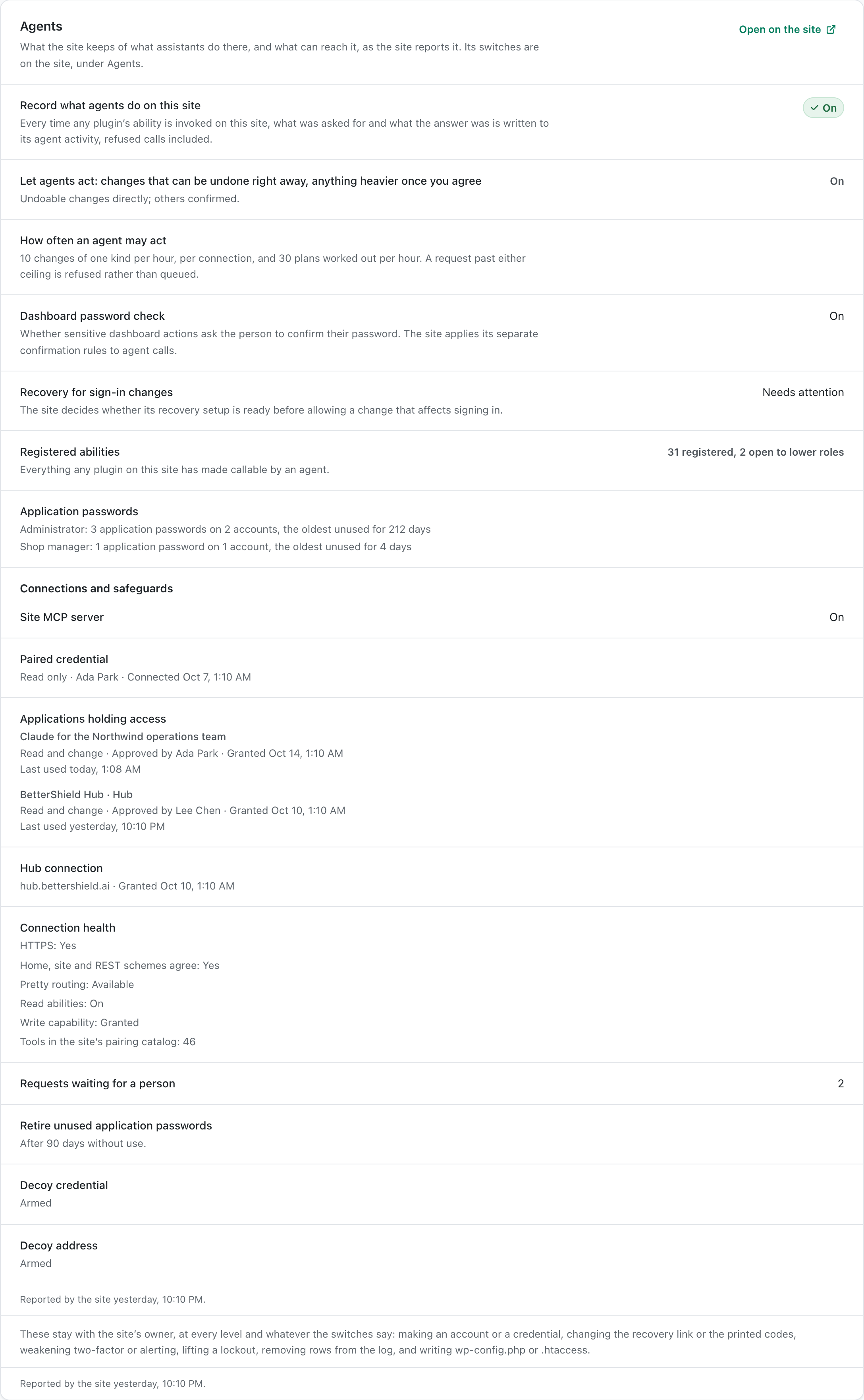
The site’s Connections and safeguards card reads the assistants, apps and permission state reported by BetterShield on that site.
Note: Sign in to your free BetterShield Hub account. Your workspace role and site permissions determine which information and actions you can use.
What it does
Use the card to see which connections the site recognizes and whether its read, change and activity-recording safeguards are available. It can also show when a connection report is stale.
Step 1: Open the feature
Open the connected site in Hub.
Step 2: Review a site’s assistant connections
- Find Connections and safeguards.
- Review each connection and the permission summary.
- Open WordPress when a site-level connection must be revoked or its safeguards changed.
There are no Hub defaults. The card reflects the site’s own Agents settings.
Recommended settings
Our advice:
- Remove connections that no longer have an owner or purpose.
- Keep read and change access no broader than the assistant needs.
- Keep agent activity recording on when assistants can act.
What it can break and how to undo
Reading the card changes nothing. Revoking a connection stops that app or assistant from reaching the site. It cannot be restored, so connect it again if it was removed by mistake.
Turning off change access can stop Hub from applying plans while keeping its read access.
Final Outcome
The card lists the site’s current connections.
- The report refreshes without a stale message.
- A removed connection disappears after refresh.
Related
This is how you can review a site’s assistant connections in BetterShield Hub.
Getting Stuck? Feel free to contact our Dedicated Support Team.