How To Review Incidents Across BetterShield Hub?
Review open incidents, decoy coverage and per-site incident timelines across a BetterShield Hub workspace.
In BetterShield Hub, Activity › Incidents collects the open incidents reported by sites in the workspace and shows whether each site reports a decoy as armed.
Note: Sign in to your free BetterShield Hub account. Your workspace role and site permissions determine which information and actions you can use.
What it does
Open incidents lists related recorded changes across sites. Review timeline opens the evidence and triage details read from that site. Decoy coverage shows which sites report a decoy credential or address as armed.
Not checked, or out of date identifies incomplete site reports.
Step 1: Open the feature
Connect sites with security read access.
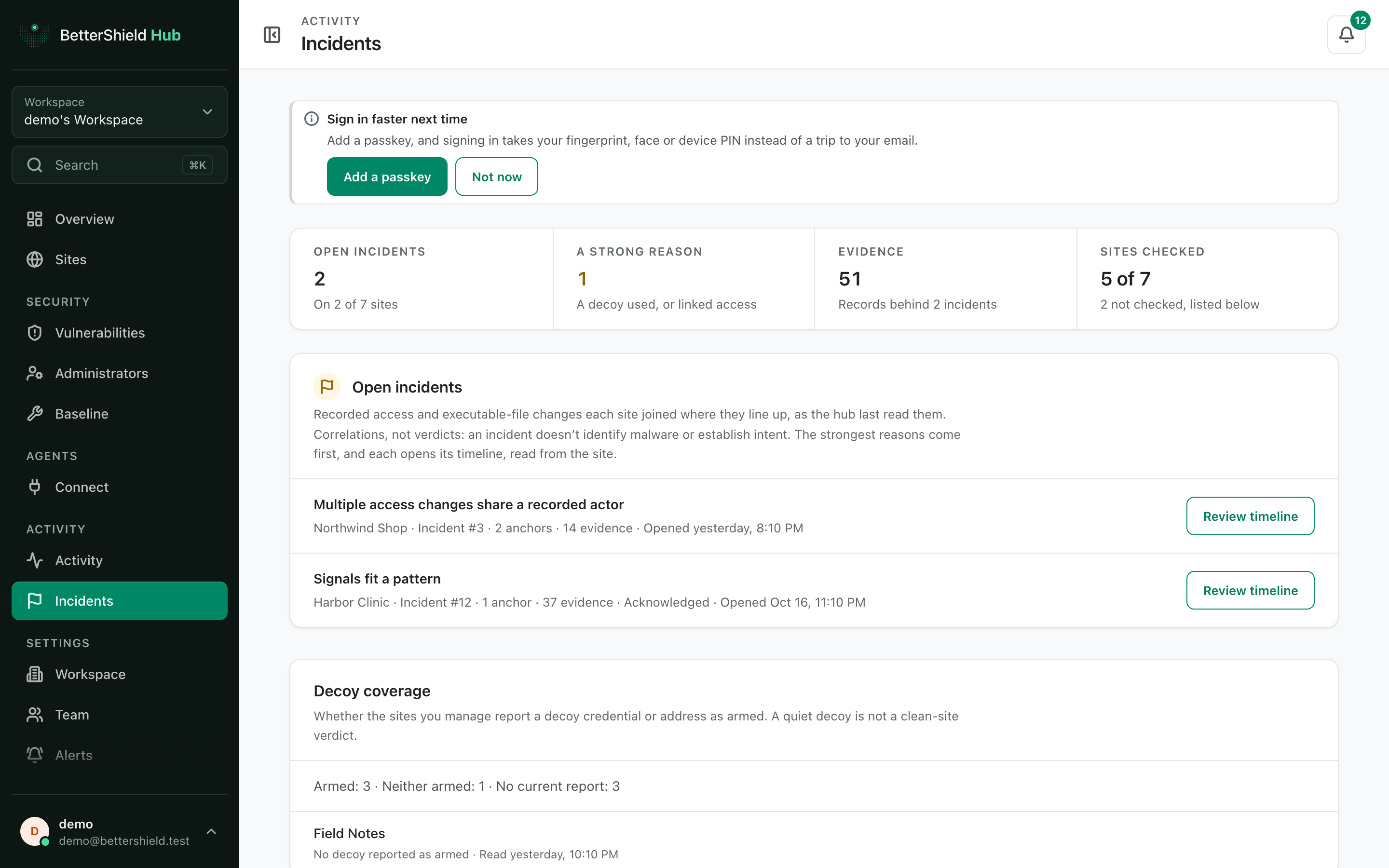
Step 2: Review incidents across BetterShield Hub
- Open Activity › Incidents.
- Select Review timeline on an incident.
- Read the anchors and evidence before choosing a triage state or site action.
There are no Hub incident defaults. Incidents are opened and updated by each site.
Recommended settings
Our advice:
- Review the strongest reasons and surrounding timeline first.
- Confirm the actor and expected maintenance before changing an account or file.
- Treat quiet decoy coverage as one signal, not proof that a site is clear.
What it can break and how to undo
Reading the list or timeline changes nothing. A triage label changes only how the incident is organized. Any response action follows the site’s own confirmation and undo rules.
If evidence is old, refresh it before deciding.
Final Outcome
Open incidents show their site, anchors and evidence count.
- Review timeline opens the selected incident.
- Decoy coverage and stale-site lists load separately.
Related
This is how you can review incidents across BetterShield Hub.
Getting Stuck? Feel free to contact our Dedicated Support Team.