How To Require Passkey-only Sign-in With BetterShield?
Stop passwords signing in accounts that hold a passkey, by role: every safeguard, what refused people see, and how password sign-in comes back.
With BetterShield, stop passwords signing in accounts that hold a passkey, by role: every safeguard, what refused people see, and how password sign-in comes back.
What it does
In BetterShield, Sign in with a passkey only stops the password signing in the accounts of the roles you pick, once each account holds a passkey. A password that cannot sign anybody in cannot be phished, guessed or reused from someone else’s breach. It is under What the site requires on BetterShield › Protection › Two-Factor, and it is the one setting there that takes a way in away, so it comes with more safeguards than any other.
- It applies account by account. An account in a ticked role that holds a passkey usable at this address can no longer sign in with its password, on any form.
- Accounts without a passkey keep their password, for as long as they need. Each dashboard page tells them: “This site asks accounts like yours to sign in with a passkey.” with Add a passkey. There is no deadline and no grace period.
- Adding the first passkey is what switches the password off. The profile then says “Your account signs in with a passkey, so your password no longer signs you in. Keep at least one passkey here, on a device you have to hand.”
- Application passwords keep working.
What refused people see
| Where | Message |
|---|---|
| The site’s sign-in page (wp-login.php) | “This account signs in with a passkey. Use the “Sign in with a passkey” button below. If you cannot, your recovery link or a recovery code restores password sign-in.” |
| Any other form, such as a store’s My Account or checkout | “This account signs in with a passkey, which this form cannot take. Sign in with your passkey on the site’s sign-in page.” with a link to it, and the same way back |
| XML-RPC | WordPress’s own “Incorrect username or password.”, the same answer a wrong password gets. Tools need an application password. |
For an account that does not manage BetterShield, both messages end “ask an administrator to remove it from your account, and your password will work again.” instead.
The passkey button is on wp-login.php only. A passkey that asks only for a touch cannot sign these accounts in on its own; on an account that also has two-factor, it goes on to the code screen.
Step 1: Open Protection › Recovery
Have a way back in ready: a working recovery link, or unused recovery codes, on Protection › Recovery.
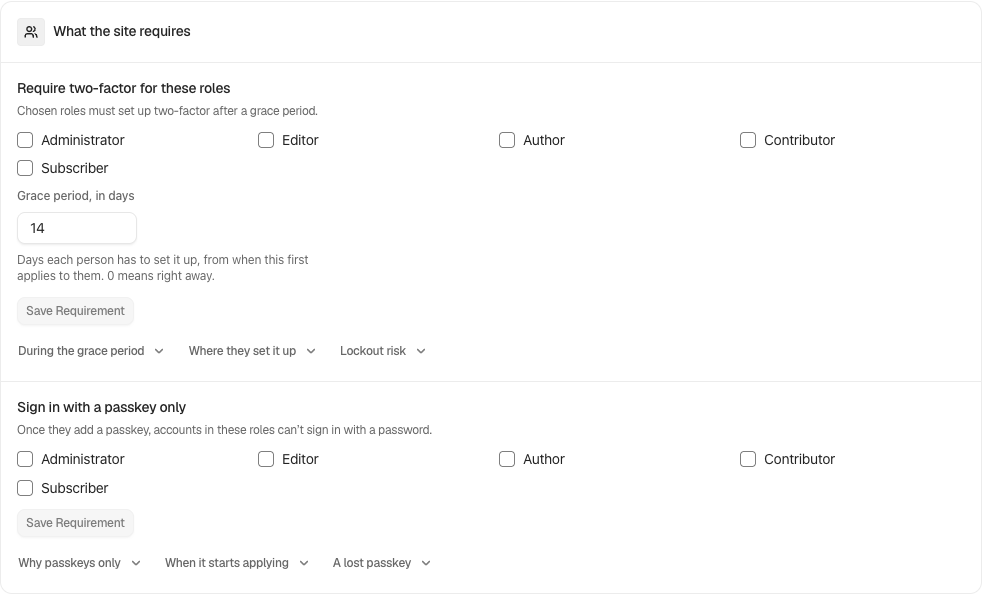
Step 2: Require Passkey-only Sign-in
- Tick the roles under Sign in with a passkey only.
- Press Save requirement.
| Option | What it does | Default |
|---|---|---|
| Roles | Accounts in each ticked role sign in with a passkey once they have one. Every role on the site is listed. | None ticked |
Under the roles, a line per ticked role says how many of its accounts have a passkey (counted up to the first 200), or that nobody holds the role.
The safeguards
- Nobody is refused until they hold a working passkey.
- A way back first. Adding a role is refused without one: “Passwords stop working for these roles, so first generate a new recovery link or issue recovery codes. An expired or undelivered link does not count.” There is no going ahead anyway.
- Only where passkeys work. Adding a role is refused while passkeys are off on the site: “No role can be asked to sign in with a passkey while passkeys are off on this site.” followed by the reason.
- It stands aside if passkeys stop working. If the site loses HTTPS later, passwords sign in again, and the card says “Not in effect: passkeys are off on this site, so these roles still sign in with their passwords. You can still take them out.”
- Taking a role out is never refused, except a role the network requires.
- A first passkey that checks who you are. For an account in a ticked role, BetterShield asks the browser for a first passkey the device unlocks with a fingerprint, face or PIN.
- No lockouts for the right password. A refused password does not count toward Sign-in attempt limits, and these accounts are never asked to confirm a password they cannot use.
- Safe mode stands it down, as it does every sign-in protection.
Recommended settings
Leave it off until the people in a role already sign in with passkeys. Then turn it on for Administrator, when:
- the site is on HTTPS,
- every administrator holds at least two passkeys their devices unlock with a fingerprint, face or PIN (the coverage line shows all of them),
- your recovery link is stored and your recovery codes are printed.
| Site | What we recommend |
|---|---|
| Store (WooCommerce) | Leave Customer unticked. Customers sign in on the store’s own form, which would send them to wp-login.php. |
| Membership or course site | Leave member roles unticked, for the same reason. |
| Agency or many sites | Only roles your own team holds, and only once every site has its own recovery link or recovery codes. Client staff in the same role are covered too, so wait until they have passkeys. |
Keep shared accounts out of passkey-only roles.
What it can break, and how to undo
- Store customers in a ticked role, once they add a passkey, are refused on the store’s form and must use wp-login.php. The screen says so when you tick a role WooCommerce keeps out of the dashboard.
- Sign-ins another plugin completes without a password, through WordPress’s sign-in step, are refused for these accounts too.
- Tools using the account password over XML-RPC need an application password.
- To undo, untick the role and press Save requirement. With Ask for my password before removing a protection on, it asks for your password.
How password sign-in comes back
| Way | For how long |
|---|---|
| The person removes their last passkey (signed in, on their profile) | Until they add one again |
| An administrator removes their passkeys (Edit user) | Until they add one again |
| An administrator unticks the role, or moves the person to a role that is not ticked | For good |
| The recovery link or a recovery code | While safe mode lasts, an hour by default. Sign in with the password, then add a new passkey or remove the lost one. |
| Passkeys stop working on the site | While they are off |
To help one person who lost theirs, an administrator presses Remove this account’s passkeys on their Edit user screen; their password works again until they add a new passkey.
Final Outcome
The Passkey-only sign-in for tile names the roles, and the coverage line shows who is covered.
- Activity log: “Passkey-only requirement changed” (High, emailed as it happens (when instant alerts are enabled)), “Password refused: this account uses a passkey” (Medium, the first per account each hour), and “Password refused repeatedly: this account uses a passkey” (High, at the tenth refusal within an hour). A repeated refusal means someone holds that password.
- The recovery link is close to expiring, and passwords are switched off (High) appears in Findings in the link’s last 14 days, and stays once it has expired. Generate a new link on Protection › Recovery.
On multisite
Passkey-only roles across the network, on BetterShield › Network, is a floor for every site. It starts as Not set and saves with Save.
- Adding a role checks every site and is refused while any has no working recovery link and no recovery codes. The message names the first such site.
- A network with more than 200 sites cannot add a role here, because not every site could be checked.
- A site cannot untick a role the network requires: “These roles sign in with a passkey across the whole network, so this site cannot take them off its own list”.
- Some network sites have no recovery options set up (Medium), on the main site’s Findings, lists sites where nobody holds a working recovery link or recovery codes.
Related
This is how you can require passkey-only sign-in with BetterShield.
Getting Stuck? Feel free to contact our Dedicated Support Team.