How To Use the Dashboard Widget With BetterShield?
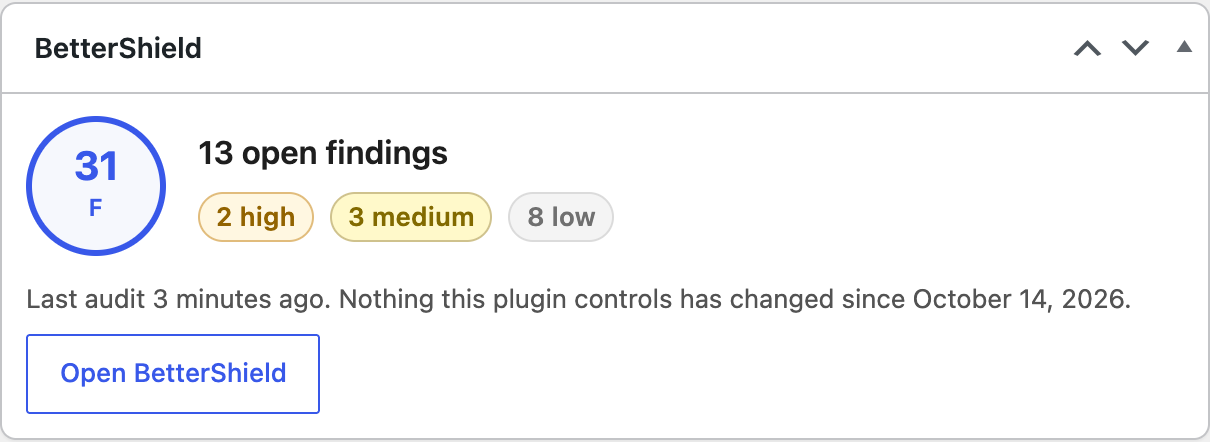
Use the BetterShield dashboard widget to see the last score, open findings, audit time, and important states.
Administrators can see the BetterShield widget on Dashboard › Home.
What it does
The widget shows the score and grade, open finding count by severity, last audit time, and the last change BetterShield controls. Snoozed findings still count. Not-applicable findings do not. It also states when safe mode is active or alerts are muted.
Step 1: Use the Dashboard Widget
The widget is added automatically for administrators. If hidden, open Screen Options at the top of Dashboard › Home and tick BetterShield.
Recommended settings
Keep the widget visible for administrators who review site health. Use Open BetterShield when the score or finding count changes.
What it can break and how to undo
The widget is read-only. Hide it with Screen Options if it is not useful.
Final Outcome
Open BetterShield › Overview, return to the WordPress Dashboard, and confirm the score and audit time match BetterShield › Overview.
On multisite
Each site’s dashboard widget shows that site’s audit. Network-wide status is under Network Admin › BetterShield › Network.
Related
This is how you can use the dashboard widget with BetterShield.
Getting Stuck? Feel free to contact our Dedicated Support Team.