How To Publish a Status Page from BetterShield Hub?
Share the current status and 90-day history of one site or a tagged group through an optional branded Hub status page.
In BetterShield Hub, Status pages under Settings › Workspace create public links for one site or a tagged group of sites.
Note: Sign in to your free BetterShield Hub account. Your workspace role and site permissions determine which information and actions you can use.
What it does
A status page shows the selected site’s or tag’s current availability and the last 90 days. The link works without a Hub sign-in while the page is on.
Step 1: Open Settings › Workspace
Open Settings › Workspace and find Status pages.
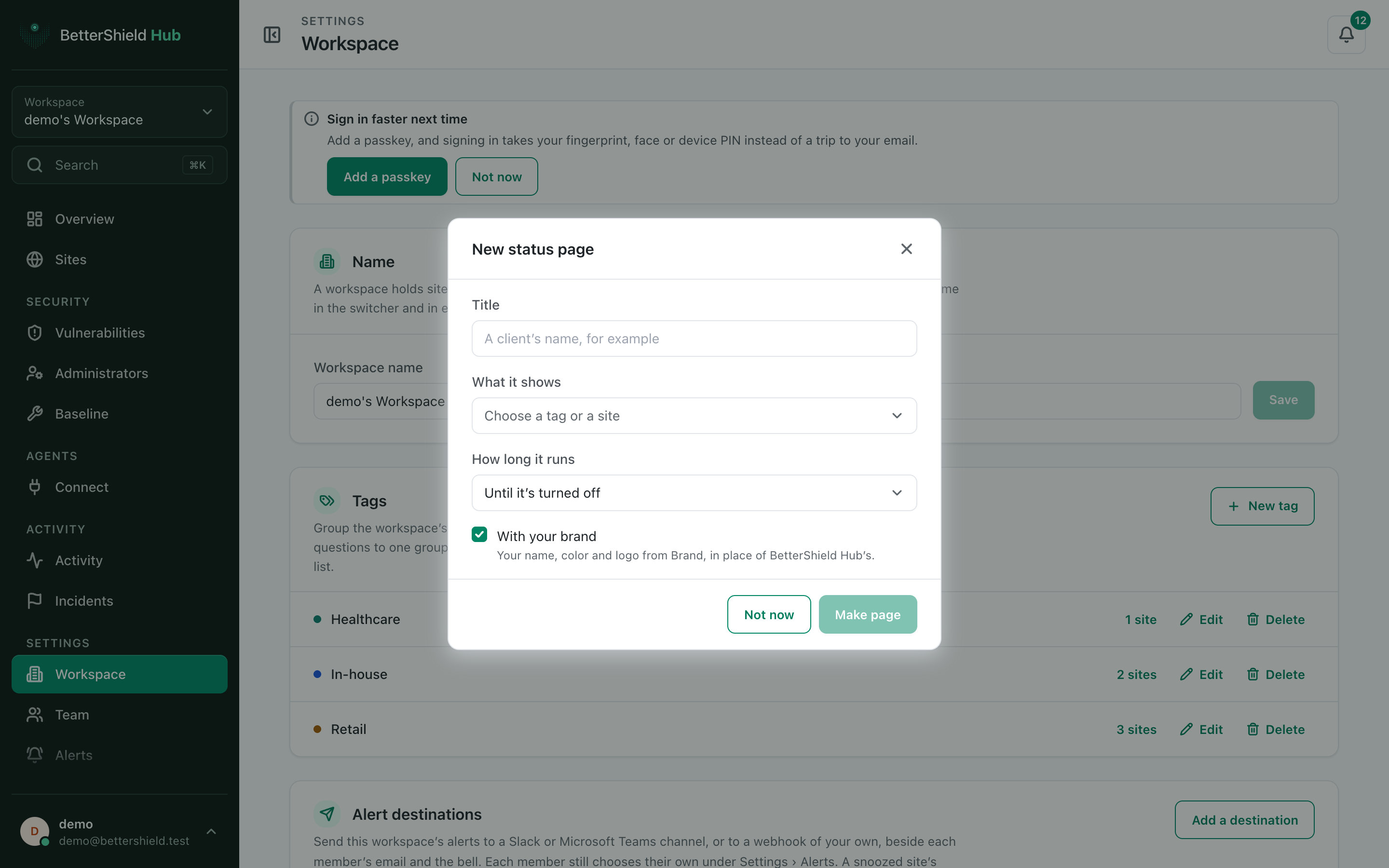
Step 2: Publish a status page
- Select New status page.
- Enter Title. It starts empty.
- Under What it shows, choose one site or one tag. No target is selected by default.
- Under How long it runs, choose Until it’s turned off (default), 30 days, 90 days or A year.
- Leave With your brand on (default) or turn it off.
- Select Make page, then copy its link.
Recommended settings
Our advice:
- Use a tag for a client with several sites.
- Set an end date for temporary projects.
- Review the page before sharing its link.
What it can break and how to undo
Anyone with the link can read the status page until it ends or is turned off. Do not put private context in its title.
Use Turn off to disable the link. A turned-off page cannot be made available at that same link again; create a new one.
Final Outcome
The copied link opens without a Hub sign-in.
- It shows only the chosen site or tag.
- The brand and duration match the saved choices.
Related
This is how you can publish a status page from BetterShield Hub.
Getting Stuck? Feel free to contact our Dedicated Support Team.