How To Review Every Site On the Network With BetterShield?
Review each site's score, findings, audit time, migration state, and recovery readiness from Network Admin.
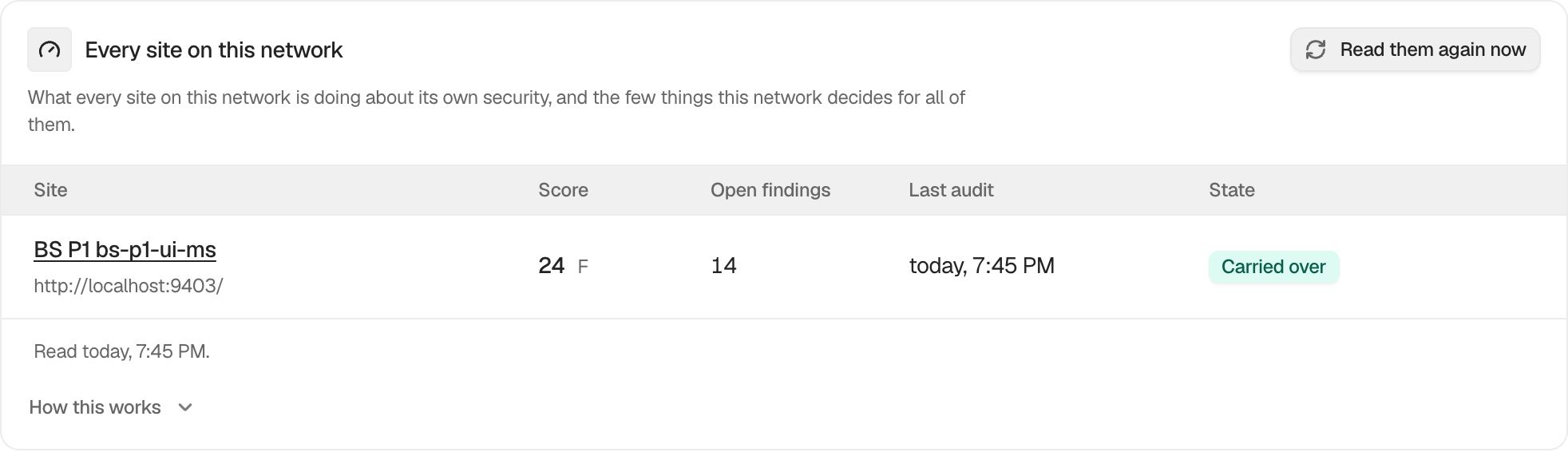
In BetterShield, open Network Admin › BetterShield › Network › Every site on this network.
What it does
Each row shows Site, Score and grade, Open findings, Last audit, and State. State can include Carried over, Not yet carried over, Not set up here yet, or No way back in. The site name links to that site’s BetterShield dashboard.
Values are cached for up to an hour. Read them again now refreshes them. Show more sites loads the next 200.
Step 1: Review Every Site On the Network
Network-activate BetterShield. Existing sites are set up during activation, and later sites are set up when created. If a large network leaves a site as not set up, open BetterShield on that site.
Recommended settings
Review sites with no recent audit or no recovery path first. Refresh before an operational review so the table uses current site records.
What it can break and how to undo
Reading and refreshing the table do not change sites. Opening an uninitialized site’s BetterShield screen completes its setup, including its first audit and recovery setup process.
Final Outcome
Select Read them again now and confirm the displayed audit times and scores match the individual sites.
Related
- Use the network recovery link
- Monitor the network log migration
- Understand your security score and grade
This is how you can review every site on the network with BetterShield.
Getting Stuck? Feel free to contact our Dedicated Support Team.