How To Manage the BetterShield Hub Team?
Review workspace members, invitations, roles, site visibility, ownership and your option to leave the workspace.
In BetterShield Hub, Settings › Team holds the people in the current workspace, pending invitations, ownership and your membership.
Note: Sign in to your free BetterShield Hub account. Your workspace role and site permissions determine which information and actions you can use.
What it does
The screen includes Members, Invitations, Hand this workspace over and Leave this workspace. Owners can manage roles and site visibility.
Step 1: Open Settings › Team
Open Settings › Team.
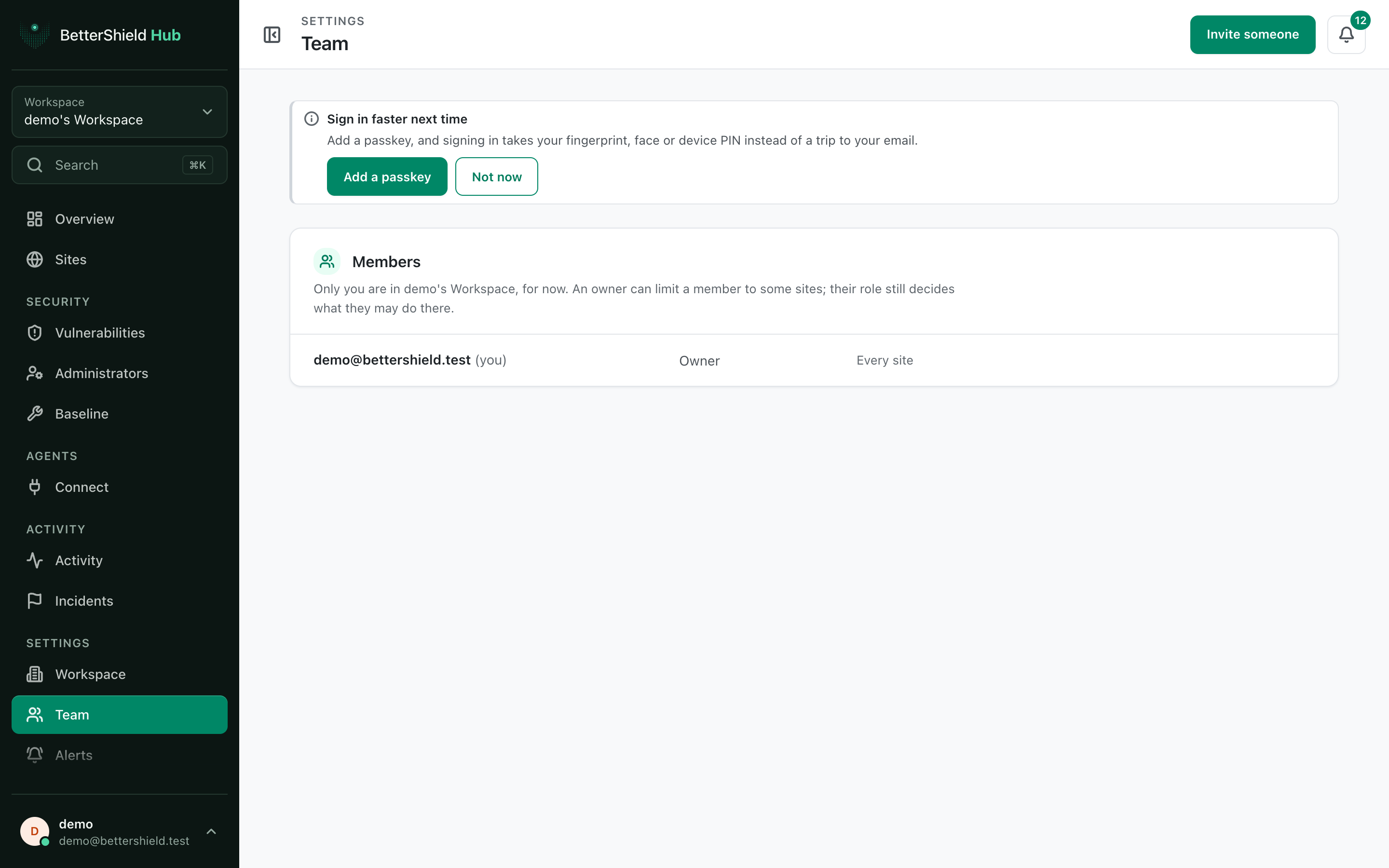
Step 2: Manage the BetterShield Hub team
- Review each member’s role and site scope.
- Use the focused actions to invite, change access, transfer ownership, remove a member or leave.
A new personal workspace starts with its owner and no invitations.
Recommended settings
Our advice:
- Give each person the lowest role and site scope that fits their work.
- Keep at least two trusted people able to manage an agency workspace.
- Review pending invitations and former team members regularly.
What it can break and how to undo
Removing or narrowing a member can stop their Hub work immediately. Restore their role or site access, or invite them again after removal.
Ownership transfer and leaving affect who controls the workspace. Read those confirmations separately.
Final Outcome
Members shows the expected people, roles and site scope.
- Invitations shows pending invitations.
- A member sees only the sites allowed by both role and scope.
Related
- Set Hub member roles and site access
- Invite someone to a Hub workspace
- Transfer a Hub workspace
- Leave a Hub workspace
This is how you can manage the BetterShield Hub team.
Getting Stuck? Feel free to contact our Dedicated Support Team.