How To Brand Shared Pages from BetterShield Hub?
Add a workspace name, accent color and logo for Hub status pages and client reports.
In BetterShield Hub, the Brand card under Settings › Workspace supplies the name, color and logo used by branded status pages and client reports.
Note: Sign in to your free BetterShield Hub account. Your workspace role and site permissions determine which information and actions you can use.
What it does
Branding replaces the BetterShield Hub identity on a shared page or report with the workspace’s saved name, accent color and logo.
Step 1: Open Settings › Workspace
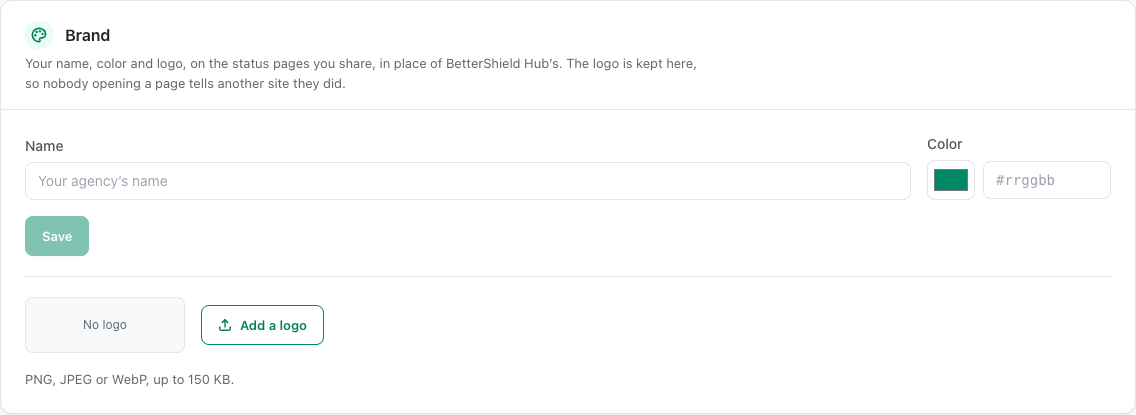
Open Settings › Workspace and find Brand.
Step 2: Brand shared pages
- Enter the workspace or agency name. It starts empty.
- Set the accent color. It starts with the Hub accent when no brand color is saved.
- Upload a logo. No logo is set by default, and the saved file must stay within the screen’s size limit.
- Save the brand.
- Turn on With your brand when creating a status page or client report. It is on by default in those dialogs.
Recommended settings
Our advice:
- Use a short name and a high-contrast accent color.
- Use a simple logo that remains clear at small sizes.
- Preview a client report before sending it.
What it can break and how to undo
Branding changes only shared Hub output. A low-contrast color or crowded logo can make it harder to read.
Edit or clear the brand, or turn off With your brand on the status page or report.
Final Outcome
The Brand card shows the saved name, color and logo.
- A preview with With your brand uses them.
- An unbranded page keeps BetterShield Hub’s identity.
Related
This is how you can brand shared pages from BetterShield Hub.
Getting Stuck? Feel free to contact our Dedicated Support Team.