How To Apply a Fix from a Finding With BetterShield?
Use Apply Fix for eligible findings, review the result, and find the matching protection when you need to reverse it.
Some findings have Apply Fix on the Overview and Findings screens. Other rows link to the WordPress or BetterShield screen that handles them, and the link opens the setting itself.
What it does
Apply Fix applies the correction offered for that finding and records the change. Some fixes enable a protection; others change files, update a plugin or suspend an account. It does not apply every possible correction, and it does not mean every site change is reversible.
Three findings have a fix of their own in the row, each with Undo: common usernames (Refuse These Names), proof of work (Turn On Sign-in Puzzle) and pingbacks (Block Pingbacks Only). The finding for BetterShield’s own auto-updates has one too: Apply Fix switches them on in one press.
Free 1.1.5 adds direct fixes, with Undo, for file permissions, folders anyone can write to, plugin updates, inactive plugins and themes, and dormant accounts. These can run from their row or as part of a bulk selection. Review what each action changes before confirming it.
Step 1: Open Explain
Select Explain or open the finding and read What to know first.
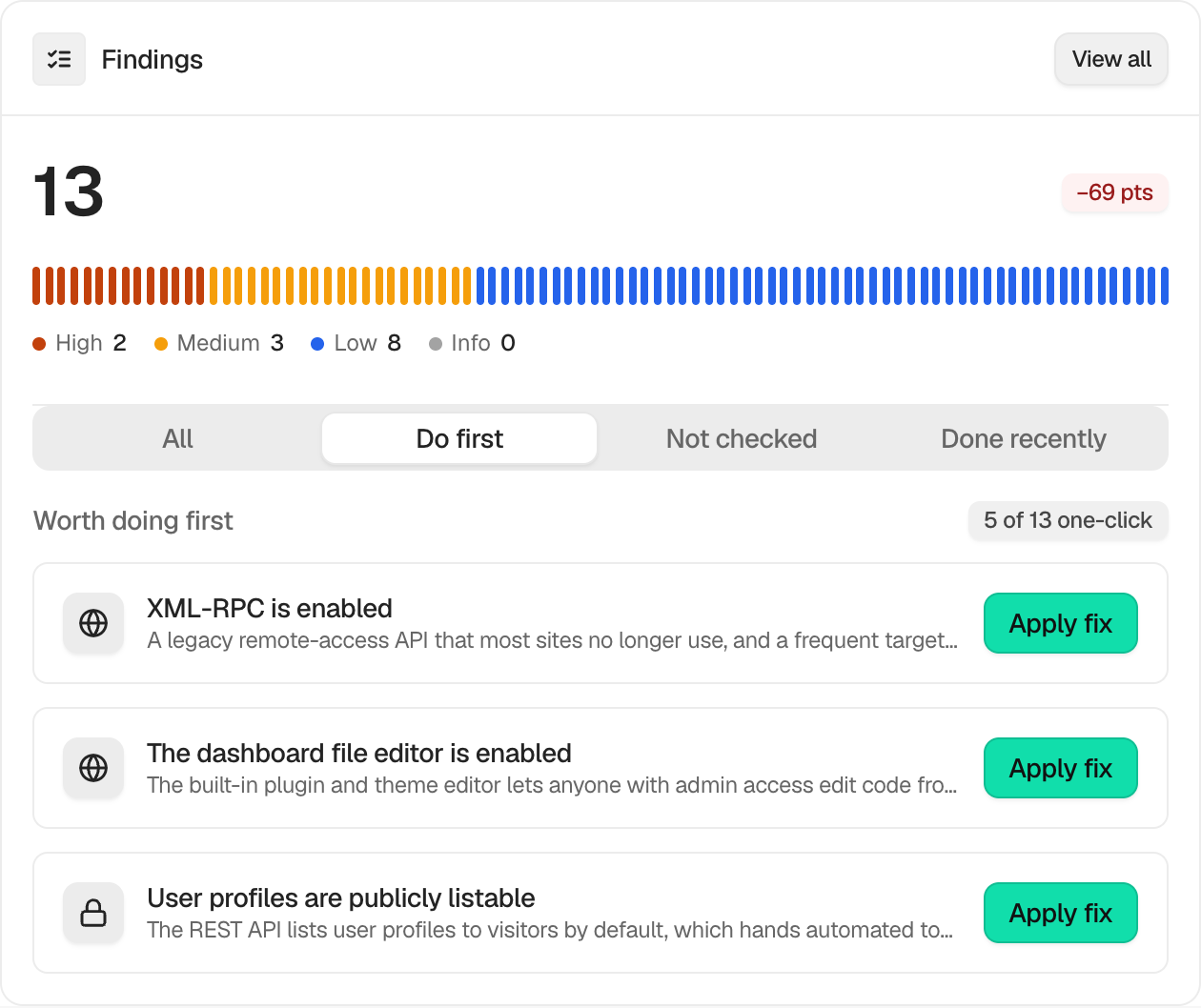
Step 2: Apply a fix from a finding
- Select Apply Fix.
- Complete any confirmation shown for that protection.
- Read the result. The finding and your score update on their own. If it stays open, press Check Again: it says what the check still sees.
Apply several at once
Tick the rows you want. The bar shows how many are selected, and Apply Fix (n) counts the ones that have a one-press fix. Rows whose fix asks you something first are left out. Press it, read the list of fixes in the confirmation, then press Apply n Fixes. Each is applied as its own Apply Fix would be, and you can undo the applied set afterwards. If one fix cannot change its item, the remaining fixes still run. Read the receipt for both successful and skipped items.
Recommended settings
Apply one correction at a time on a site with a current backup and a working recovery method. Test the affected feature before moving to the next finding.
What it can break and how to undo
The effect depends on the protection. A request rule can conflict with a service or plugin, and an access rule can change how people sign in. Use the row’s Undo or its recorded undo. For a protection switch, open BetterShield › Protection and find the matching protection. A plugin update’s undo depends on the earlier package still being available. Some actions outside BetterShield cannot be reversed by the plugin.
Final Outcome
Confirm the protection shows as on and test the affected site behavior. The finding should move to Fixed when the check passes, without running an audit. If it does not, press Check Again.
Related
This is how you can apply a fix from a finding with BetterShield.
Getting Stuck? Feel free to contact our Dedicated Support Team.