How To Require Two-factor by Role with BetterShield Ultra?
Choose WordPress roles that must set up two-factor and give them 0 to 90 days to finish.
In BetterShield Ultra, Two-factor authentication by role on BetterShield › Ultra › Sign-in rules requires people in selected roles to set up the site’s authenticator-app two-factor.
What it does
People in selected roles see a dashboard reminder. After their grace period, the next password sign-in goes to Set up two-factor authentication before continuing.
Step 1: Open BetterShield › Ultra › Sign-in rules
Open BetterShield › Ultra › Sign-in rules.
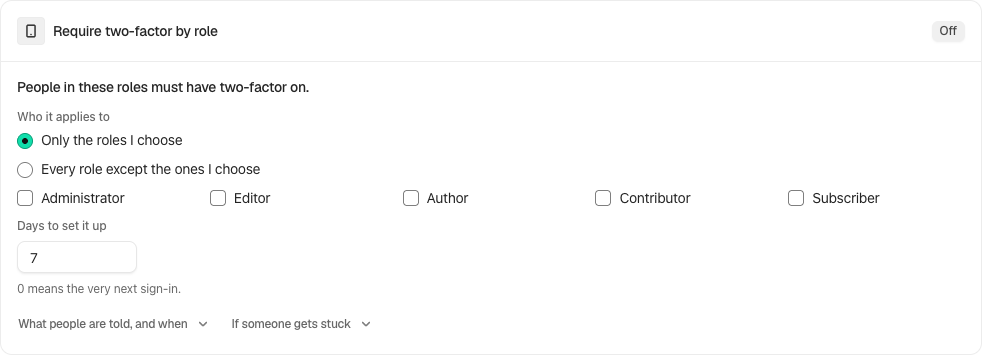
Step 2: Require two-factor by role
- Under People in these roles must have two-factor on, tick the roles. None are ticked by default.
- Set Days to set it up from 0 to 90. The default is 7. A value of 0 means the very next sign-in.
- Select Save policies.
The three policy cards save together.
At sign-in, the final Save your backup codes page offers Copy Codes, Download and Print. Store the codes before selecting Turn On Two-Factor. The free plugin’s Two-Factor screen also shows roles covered by the Ultra policy.
Include or exclude roles
Who it applies to offers Only the roles I choose (the default) or Every role except the ones I choose. Read the explanatory line before saving: selecting all roles in the exclusion mode requires two-factor of nobody. New roles are covered by the exclusion mode unless excluded. The Days to set it up value may be 0 for the next sign-in; the default is 7 days.
Recommended settings
Our advice:
- Require administrators first.
- Give active editorial teams enough time to enroll and store backup codes.
- Use 0 days only when every affected person is ready.
What it can break and how to undo
After the deadline, a person who cannot complete setup cannot reach the dashboard. An administrator can turn off two-factor for that account, or remove the role from this policy and save.
Recovery safe mode pauses enforcement while somebody gets back in.
Final Outcome
The card shows On after at least one role is saved.
- A person in that role sees the reminder and remaining days.
- After the deadline, their next password sign-in opens enrollment.
On multisite
Each site keeps its own policy. A session started on another site does not bypass this site’s enrollment screen.
Related
- Set up Ultra sign-in policies
- Ask roles to add a passkey
- See who has two-factor or a passkey
- Two-factor and passkeys
This is how you can require two-factor by role.
Getting Stuck? Feel free to contact our Dedicated Support Team.