How To Use the BetterShield Ultra Schedules Screen?
Review BetterShield scheduled work and start supported security checks early without changing their next scheduled run.
With BetterShield Ultra, review BetterShield scheduled work and start supported security checks early without changing their next scheduled run.
Note: These controls require the paid BetterShield Ultra add-on alongside the free BetterShield plugin.
What it does
BetterShield › Ultra › Scheduled tasks shows the checks, reports and housekeeping that BetterShield and Ultra run automatically.
Use the focused guides to:
- Monitor scheduled work, including the last result, next run and a warning when WordPress scheduling is behind.
- Run a supported check early without moving its next scheduled run.
Step 1: Use the BetterShield Ultra Schedules Screen
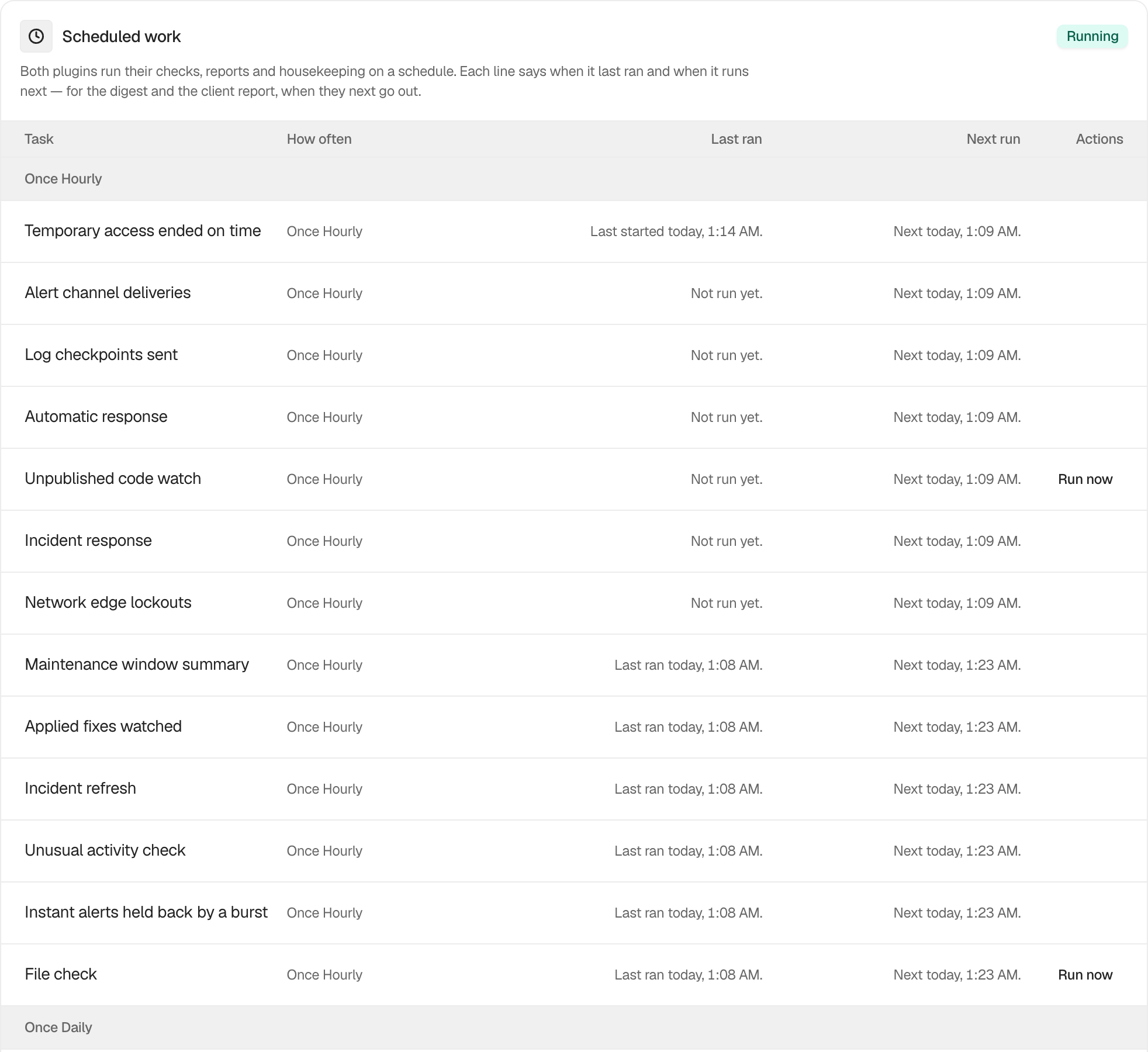
There are no settings. Open the screen to read the schedule. Run now appears only beside Security audit, File check, Certificate check and Unpublished code watch.
Recommended settings
Review this screen after migrating a site, changing its WordPress cron configuration or noticing a late report. Use Run now only when you need a result before the next scheduled run.
What it can break and how to undo
Viewing the schedule changes nothing. Starting a check can add temporary server load and cannot be cancelled from this screen. Its regular schedule remains unchanged.
Final Outcome
The card badge reads Running, recurring tasks have future times under Next run, and completed tasks have recent Last ran entries. A Behind warning means WordPress scheduled work needs attention.
On multisite
The screen reports the scheduled work available in the current site or network context.
Related
This is how you can use the BetterShield Ultra schedules screen.
Getting Stuck? Feel free to contact our Dedicated Support Team.