How To Understand and Improve your Security Score With BetterShield?
How BetterShield adds 60 setup points and 40 health points, what every finding costs, and the steps that raise your score and grade.
See how BetterShield adds 60 setup points and 40 health points, what every finding costs, and the steps that raise your score and grade.
Note: These numbers apply to BetterShield 1.1.3 and later. Earlier versions used a different calculation, so your score can change when you update without anything new going wrong on the site.
What it does
BetterShield turns every audit into one score out of 100 and a grade from A to F, so you can see which fixes matter most and track your progress as you work through them. The score adds 60 points for setup essentials and 40 points for site health, and you can reach 100 with the free plugin. This guide shows what each finding costs and how to earn the points back.
The score has two parts:
| Part | Points | What lowers it |
|---|---|---|
| Setup essentials | 60 | The points of each setup item that is still open. |
| Site health | 40 | A deduction for every other open finding, by severity. This part never drops below zero. |
Your score is your setup points plus your health points. While any Critical finding is open, the score stops at 74. The score and the projected score use the same calculation.
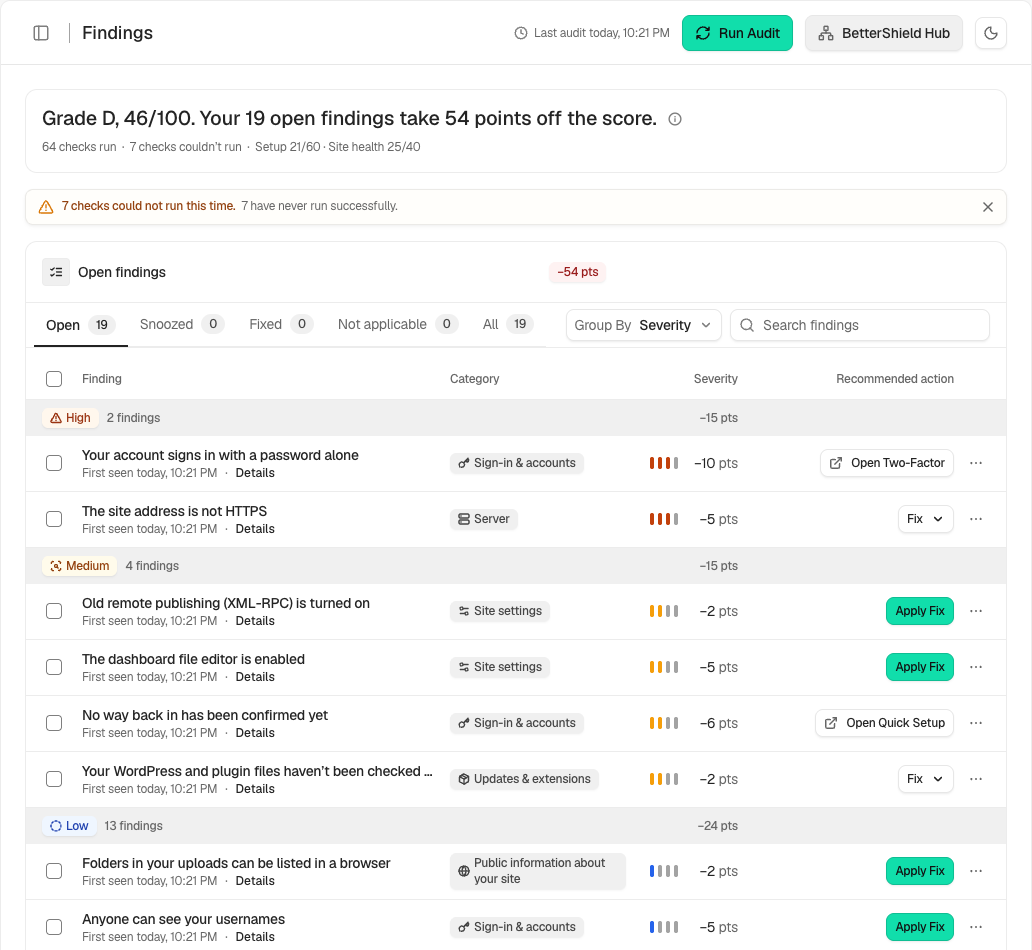
A setup finding costs its setup points instead of a severity deduction. For example, The dashboard file editor is enabled costs 5 setup points, even though its severity is Medium. It does not also cost 2 health points.
Every other open finding takes this much from site health:
| Severity | Points removed while open |
|---|---|
| Critical | 10 |
| High | 5 |
| Medium | 2 |
| Low | 1 |
| Info | 0 |
Grades:
- A: 90 to 100
- B: 75 to 89
- C: 60 to 74
- D: 45 to 59
- F: below 45
The Critical cap is a ceiling, not an extra deduction. A site with 60 setup points and 30 health points totals 90, but shows 74 until its Critical finding is fixed. A score already below 74 stays where it is.
Use the score to track what the audit knows about. Read it with the evidence and with any check that could not run: a high score means the audit’s checks pass, not that nothing on the site can go wrong.
There is no scoring setting to change. You raise the score by closing findings, one at a time.
Step 1: Open your findings
Go to BetterShield › Findings. Start with Critical and High results, because a Critical finding holds the whole score at 74 and costs 10 health points, and each High finding costs 5.
Step 2: Read the evidence
Open the finding and read Why it matters, Evidence and What to know first. Effect on the score shows what this one finding costs. Use the tables below to see how it compares with your other findings.
Step 3: Apply the fix
Use the action the finding offers:
- Apply Fix switches on the matching protection.
- Fix opens a panel with more choices.
- Open Hardening takes you to the setting that handles it.
- How to Fix gives the steps when the change happens outside BetterShield, for example at your host.
Read any confirmation before you go ahead, then test the part of the site the change affects. Before you change anything about signing in, make sure your way back in works. See Set up recovery.
Step 4: Check the finding again
The finding and your score update on their own after a fix or a settings change made in BetterShield. Press Check Again if you want to confirm: if the finding is still open, it says what the check still sees. The finding should move to Fixed. File and certificate checks run in the background, so wait for them to finish.
Many actions inside a finding recheck it for you. A change made somewhere else, such as WordPress itself, your host or a file manager, shows up the next time you open a BetterShield screen once the last audit is five minutes old, or at the next scheduled audit. Run Audit brings it in at once. Apply a fix from a finding covers this in detail.
Setup essentials: all 60 points
There are 16 setup items, checked by 17 findings: sign-in limits have two. Each row is the finding as it appears in your report. An item that is already done earns no extra points when you apply it again.
| Finding | Points | How to earn the points back |
|---|---|---|
| Some privileged accounts sign in with a password alone | 10 | Under BetterShield › Protection › Two-Factor, choose roles in Require two-factor for these roles and press Save Requirement, or have each account set up two-factor or a passkey. It covers administrators, editors, shop managers and network super admins. A saved requirement counts during its grace period. Require two-factor, Passkeys. |
| Failed sign-ins are not being counted, so password guessing is not stopped; Nothing is limiting sign-in attempts | 8 | Turn on Sign-in attempt limits under Protection › Login & Access. You can also press Fix on the finding. If the screen says it cannot read visitors’ real addresses, add your CDN or proxy under Addresses of your CDN or proxy. A limit set by another recognized plugin also counts. Sign-in lockouts, Proxies and Cloudflare. |
| Your recovery options aren’t confirmed yet | 6 | Under Protection › Recovery, send yourself the recovery email and confirm it arrived, or save recovery codes. The finding’s link opens Recovery. Creating a link without confirming it arrived is not enough. It also passes when your host tells BetterShield it gives you a way into the site that does not use the sign-in form. Set up recovery. |
| The dashboard file editor is enabled | 5 | Apply File editor lock under Protection › Hardening. A restriction already set in WordPress also counts. Turn off the file editor. |
| Anyone can see your usernames | 5 | Apply Username privacy under Protection › Hardening. Stop visitors collecting your usernames. |
| Your site doesn’t send some standard browser safety settings | 3 | Apply Browser protections under Protection › Hardening. It also passes when your web server is seen sending the headers itself on a visitor’s page at the daily check. Security headers. |
| Sign-in tries with common usernames are not refused | 3 | Press Fix on the finding, then Refuse These Names (it waits until your way back in is confirmed), or add the names to Never allowed to sign in under Protection › Login & Access. Undo puts the list back. Names an existing account uses are never blocked. Allow and block lists. |
| Folders in your uploads can be listed in a browser | 2 | Apply Folder listing protection under Protection › Hardening. It also passes when your web server refuses to list the folders. Stop uploads folders listing their files. |
| Your WordPress version is visible in your site’s code | 2 | Apply WordPress version privacy under Protection › Hardening. Hide the WordPress version. |
| Repeated password reset requests are not slowed down | 3 | Turn on Slow repeated password reset requests in the Request protection card under Protection › Login & Access. Form limits. |
| Repeated comment posts are not slowed down | 3 | Turn on Send floods of comments to moderation in the same card. This also passes when comments are closed by default. Form limits. |
| Repeated sign-ups are not slowed down | 3 | Turn on Slow repeated sign-ups in the same card. This also passes when registration is closed. Form limits. |
| The hidden bot check on your forms is off | 3 | Turn on Block simple bots on forms in the Sign-in protection card under Protection › Login & Access. Bot check. |
| Other sites can still send pingbacks to yours | 2 | Apply Remote publishing block (XML-RPC) under Protection › Hardening, with any choice in What to turn off. The pingbacks choice, Only link notifications from other sites (pingbacks), earns these points and lowers the XML-RPC health finding to 1 point. You can also press Fix on this finding, then Block Pingbacks Only, and use Undo to reverse it. Turn off XML-RPC. |
| Sign-in doesn’t slow down password guessing | 1 | Press Fix on the finding, then Turn On Sign-in Puzzle, or turn on Ask for a sign-in puzzle after wrong passwords in the Sign-in protection card. It needs HTTPS and sign-in protection on. Undo turns it off again. Sign-in lockouts. |
| Your host is not blocking AI crawlers | 1 | Turn on your host’s AI bot blocker in your hosting panel. This finding appears only when your host reports that its blocker is off. With no report from the host you keep the point, which does not prove crawlers are blocked. |
Sign-in limits are one item. The two findings share its 8 points, and only one is open at a time: Nothing is limiting sign-in attempts while the switch is off, or Failed sign-ins are not being counted, so password guessing is not stopped while it is on but the site cannot read visitors’ real addresses.
Two-factor and passkeys: the setup check accepts a second factor, a passkey, or a saved two-factor requirement for the account’s role. This is separate from the requirement itself: a passkey alone does not meet a requirement for two-factor.
Protection you already have: BetterShield recognizes some matching protections from WordPress and supported plugins, depending on the check. It also gives credit for what your host already provides:
- Security headers. The check passes when your web server was seen sending the headers on a visitor’s page at the daily check. Until that check has run, the finding can still show.
- Folder listing. It passes when your web server refuses to list the uploads folders.
- Backups and recovery. BetterShield cannot see these from inside WordPress, so a host has to tell it. When your host says it backs up and can restore the site, the backup finding passes. When your host says it gives you a way into the site that does not use the sign-in form, the recovery findings pass.
If your host does one of these and the finding stays open, check the real response or folder before adding a second rule. The checks do not recognize every host setup.
Site health: what each finding costs
The other 54 checks share the 40 health points. The numbers are what an open finding takes away. Health never drops below zero, so on a site with many findings one fix may not move the score straight away (see the last worked example).
One finding can cover several affected items. For example, every pending plugin update shares one 2-point finding. Known security issues use the highest severity among the affected plugins and themes. An issue with unknown severity counts as Medium.
Access and accounts
| Finding | Costs | What to do |
|---|---|---|
| Your recovery options aren’t fully set up | 1 · Low | Open Fix and complete what is missing: the recovery link, the email test or recovery codes. The finding’s link opens Recovery. This is separate from the 6-point setup item, and it passes when your host provides a way in. Set up recovery. |
| The recovery link is close to expiring | 2 · Medium; 5 · High when passwords are switched off | Generate a new recovery link and replace your saved copy, because the old link stops working. Set up recovery. |
| Two plugins limit sign-in attempts | 1 · Low | Choose which plugin limits sign-in attempts, in the coexistence step of Quick Setup. Use BetterShield alongside another security plugin. |
| A user is named “admin” | 1 · Low | Use Fix to rename the account, then sign in with the new name. |
| The original admin account (user ID 1) is still an administrator | 1 · Low | Sign in as another administrator, move the old account’s content, then demote or remove it. Renaming it keeps the same ID. |
| Non-admin users can add code that runs in visitors’ browsers | 1 · Low | Apply Admin-only script and file uploads, or correct the role’s permissions. Test any content that needs scripts. Restrict unfiltered code. |
| Some admin passwords are saved the old, less secure way | 2 · Medium | Ask those administrators to sign in again so WordPress saves the password the new way, or reset the passwords. |
| Some app passwords haven’t been used for months | 1 · Low | Revoke the ones you no longer need, from Fix or the account’s profile. Retire unused app passwords. |
| Some people still use passwords weaker than your password rules | 1 · Low; 2 · Medium for privileged accounts | Use Fix to require a new password for those accounts. Password rules. |
| Sign-ins are being refused because BetterShield cannot save to the database | 10 · Critical | Use your recovery link if you need to, then press Repair Storage. If the repair fails, ask your host to fix the database error. Troubleshooting. |
| An administrator hasn’t signed in for months | 2 · Medium | Check with the account’s owner, then use Fix to suspend the account, or lower its role on the Users screen. Unused administrators. |
| Some network sites have no recovery options set up | 2 · Medium | On each named site, that site’s administrator or a network administrator sets up a recovery link or unused recovery codes. Network recovery link. |
| A page uses the same address as your custom sign-in page | 2 · Medium | Choose a sign-in address that no published page uses, from Fix or Protection › Login & Access. Change the sign-in address. |
| Anyone can sign up and get more than Subscriber access | 5 · High | Apply Subscriber role for new sign-ups, or close public registration. Subscriber registration. |
Public exposure
| Finding | Costs | What to do |
|---|---|---|
| A plugin lets any signed-in user, even a Subscriber, make changes to the site | 5 · High | Apply Admin-only plugin actions, or ask the plugin’s developer to fix its permission check. Restrict site-changing abilities. |
| Another plugin lets AI assistants use your site without signing in | 5 · High | Require sign-in in the named plugin, update it, or turn off its MCP endpoint. Assistant connections. |
| Your security contact file (security.txt) expires soon | 1 · Low; 2 · Medium once expired | Press Renew for a Year and confirm the contact still works. Security contact. |
| Files that should be private can be downloaded from this site | 10 · Critical | Apply Private file protection where it is offered, or ask your host to deny access. Secure any exposed copies and change the passwords or keys they revealed. Hide sensitive files. |
| A leftover setup or database tool is publicly reachable | 2 · Medium; 5 · High; 10 · Critical | Quarantine or remove the named tool once you no longer need it. Site archives, installers and search-replace tools are Critical. Database managers are High. File quarantine. |
| Other websites can read private data from your site for signed-in visitors | 5 · High | Apply Cross-site data protection if it is offered, or ask your host or the plugin’s developer to correct the cross-origin policy. Restrict cross-site requests. |
| Some background jobs belong to plugins that are no longer installed | 1 · Low | Review the named jobs in Fix. Remove confirmed leftovers, or reinstall the plugin that should run them. |
| Some plugin data can be read by anyone without signing in | 0 · Info | Check whether each route should be public. Public access alone is not a flaw. Observe a REST route. |
| The site’s certificate is close to expiring | 2 · 8 to 21 days left; 5 · 3 to 7 days; 10 · 2 days or fewer, or expired | Renew the certificate with your host or certificate issuer, then press Check Again. Server compatibility. |
| Some posts still load images or files over insecure http:// | 1 · Low | Review the links in Fix and change them to working HTTPS addresses. Check that the media still loads. |
| Non-admin users can upload files that can run code | 2 · Medium; 5 · High for PHP files | Apply Admin-only SVG and code uploads, or narrow the file types the role or plugin allows. Test the uploads people need. An administrator who also holds the lower role, and a super admin, are not counted. Restrict script uploads. |
Updates, plugins and files
| Finding | Costs | What to do |
|---|---|---|
| A WordPress core update is available | 5 · High | Back up the site, update WordPress and test the site. On multisite, update from Network Admin. |
| Plugins have updates available | 2 · Medium | Update the plugins listed in Fix and test what they do. |
| Automatic updates are off for BetterShield | 1 · Low | Press Apply Fix to turn on BetterShield’s own auto-updates in one press, with Undo, or turn them on for BetterShield on the Plugins screen. On a network, do it from the main site. Your host may control this setting. Automatic BetterShield updates. |
| An installed plugin is no longer in the WordPress.org directory | 2 · Medium | Find out why it was closed, then replace or remove it. Before you rely on an update, confirm it fixes the reason. |
| There are files in your plugins folder that don’t belong to any plugin | 1 · Low | Check the named files with your developer or host. Quarantine suspicious files and remove confirmed leftovers. Leave a file alone until you know what it is. |
| An installed plugin has had no WordPress.org update for years | 1 · Low | Confirm with the developer that the plugin is still maintained. Replace it if it is abandoned. |
| Some WordPress or plugin files have been changed | 2 · Medium for clutter only; 10 · Critical otherwise | Review the changes under BetterShield › Activity › File Changes. Restore official files, quarantine suspicious additions, or press Accept Change for changes you have checked. Put an official file back, Mark file changes as expected. |
| Some installed plugins or themes have known security issues | 0 to 10, by the reported severity | Update to the fixed version listed. If there is none, consider deactivating or replacing the plugin or theme. Vulnerability checks. |
| The security issue list hasn’t been updated recently | 2 · Medium | Run the finding’s refresh. If new data cannot be fetched, fix the connection or background-job error. What BetterShield contacts. |
| Your WordPress and plugin files haven’t been checked for changes yet | 2 · Medium | Start the file check, let it finish, then run the audit again. File integrity checks. |
| Deactivated plugins or themes are still installed | 1 · Low | Move the ones you don’t use to quarantine from Fix; Put Back restores them. Keep the active theme and its parent theme. |
Server and hosting
| Finding | Costs | What to do |
|---|---|---|
| This PHP version no longer receives security fixes | 5 · High | Ask your host for a supported PHP version, after testing your plugins and theme on it. Server compatibility. |
| The site address is not HTTPS | 5 · High outside production; 10 · Critical in production | Install a working certificate first, then use Fix to switch the site address to HTTPS. Switch the site to HTTPS. |
| Your sign-in page is being cached | 2 · Medium | Exclude your sign-in address from page, host and CDN caches, clear the saved copy, then press Check Again. Keep the sign-in page out of caches. |
| The disk this site writes to is almost full | 2 · Medium; 5 · High below 100 MiB free | Free up space safely or ask your host for more, then press Check Again. This measures the disk, not your hosting plan’s quota. |
| BetterShield’s background jobs have stopped running | 2 · Medium | Retry from Fix. If the jobs stop again, ask your host to repair WP-Cron or run it from the server’s own scheduler. Troubleshooting. |
| Other users on your server can change your main settings file | 5 · High | Use Fix to stop other server users writing to wp-config.php (it removes group and world write), or ask your host to set the right ownership and permissions. |
| Some site folders can be changed by any user on your server | 2 · Medium | Remove world-write permission from the named folders, with Fix or your host’s help. Keep the access WordPress needs. |
| Files in quarantine can still be opened from the web | 2 · Medium | Seal the quarantine folder from Fix, or ask your host to deny web access where the offered rule cannot be used. File quarantine. |
Configuration and monitoring
| Finding | Costs | What to do |
|---|---|---|
| Old remote publishing (XML-RPC) is turned on | 2 · Medium; 1 · Low once pingbacks are blocked | If nothing on the site needs it, apply Remote publishing block (XML-RPC) and choose Everything in What to turn off. The pingbacks-only choice stays open at 1 point, and the title then reads Pingbacks are blocked, and the rest of XML-RPC is still on. Turn off XML-RPC. |
| Security alerts are not being delivered | 5 · High | Fix your mail or SMTP delivery, then send a test alert and check that it arrives. Email alerts. |
| Fake mail from this site’s domain is hard to spot; Your domain’s email and SSL settings could be stronger | 2 · Medium for the first; 1 · Low for the second | Open How to Fix for the suggested DNS records. Add them at your DNS provider without dropping any real sender, then press Check Again. |
| No recognized backup plugin is active | 1 · Low | Confirm you have scheduled backups and a restore that works. If your host’s backups cover the site, check them before you mark this finding Not applicable. It passes on its own when your host tells BetterShield it backs up the site. |
| Some activity log entries were changed or deleted after they were saved | 5 · High | Look into the named day: database changes and who had access. Keep the evidence and find the cause before you treat it as expected. Activity log checkpoints. |
| Your site’s security keys are missing or weak | 5 · High | Generate new keys and salts from the finding, then replace all eight lines in wp-config.php. Everyone is signed out. Sign everyone out on demand does not replace these keys. |
| Some protections that are switched on are not working | 2 · Medium | Repair the named protections from Fix. Check for safe mode, a removed server rule or a conflicting setting. Hardening. |
| Your database uses WordPress’s default table names | 1 · Low | Read How to Fix before you change anything. This alone is not a vulnerability, and changing the prefix needs a full backup and an experienced administrator. |
| Error messages are visible to visitors | 2 · Medium outside production; 5 · High in production | Apply Error message privacy, or ask your host to stop showing errors publicly while keeping private logs. Hide PHP errors. |
| BetterShield can’t save some of its data | 5 · High | Press Repair Storage. If it fails, ask your host to fix the database permission or table error. Troubleshooting. |
Some findings change severity with the situation, so the finding on your screen always shows its current cost. A Critical result in any table also turns on the 74 cap. Add-ons can add findings of their own, and those cost health points on the same scale.
Worked examples
| Open findings | Calculation | Score |
|---|---|---|
| None | 60 + 40 | 100 · A |
| Password-only privileged accounts, recovery not confirmed, proof of work off, plugin updates available | (60 − 10 − 6 − 1) + (40 − 2) | 81 · B |
| One Critical finding: private files can be downloaded | 60 + (40 − 10) = 90, held at 74 | 74 · C |
| Sign-in limits off, nothing else | (60 − 8) + 40 | 92 · A |
| All setup done, health findings adding up to 46 | 60 + 0 (health stops at zero) | 60 · C |
In the last example, fixing a 5-point health finding leaves 41 points of deductions, so the score stays at 60. The fix still matters: fix another 2-point finding and the deductions drop to 39, so the score rises to 61. In the same way, while a Critical finding holds the score at 74, other fixes may not move the number until that finding is closed.
Recommended settings
Our advice, in order:
- Fix every Critical finding first. Nothing else can lift the score past 74 while one is open.
- Confirm your way back in, then require two-factor for privileged roles and turn on sign-in limits. Together they are worth 24 setup points.
- Apply the one-click hardening items in the setup table: the file editor, usernames, browser protections, folder contents and the WordPress version.
- Work through High health findings, then Medium, then Low.
On any site, read the evidence before you apply a fix, and check the change works for the people who use the site.
What it can break and how to undo
Calculating the score only reads your site; it changes nothing. Follow each fix’s own guide before you change the site.
Some actions in the report change the score without changing the site:
- Fixed: a passing check closes its finding and gives back its points. Undoing the change can open it again.
- Snoozed: Snooze hides the finding for a number of days, and it comes back sooner if it becomes more serious. It stays open, still costs its points, and still triggers the 74 cap if it is Critical.
- Not applicable: takes the finding out of the score. Use it only once you have confirmed the check really does not apply, because it changes the report, not the site. Move back to Open brings it back.
- Could not check: never counts as a pass. A finding that was already open keeps its cost until a fresh result is available. A check that never found anything adds no cost, so read the notice about checks that could not run alongside the score.
- A protection with no finding adds no points on its own. The score follows the list of checks, not the number of switches you turn on.
BetterShield Ultra is not needed to reach 100. No part of the score is kept for paid features. Snooze a finding or mark it not applicable covers these actions.
Final Outcome
The Findings screen shows how the score was reached, for example Setup 52/60 · Site health 35/40, with Held at 74 while a critical finding is open added when the cap applies. After you fix a finding, compare both the finding and this breakdown. They update on their own. Checks that could not run stay listed as such.
If you updated from a version before 1.1.3, run an audit first. Earlier versions took 25 points for a Critical finding, 12 for High, 7 for Medium and 3 for Low from a single 100. A jump in your score across the update can come from the new calculation and new checks, not only from fixes. Grade boundaries did not change. If you use wp bettershield audit --fail-under in a script, check its threshold against the new numbers.
This is how BetterShield’s security score shows you where your points went, and how fixing findings one at a time earns them back.
Related
- Score and findings
- Read and filter the Findings report
- Read the evidence behind a finding
- Apply a fix from a finding
- Snooze a finding or mark it not applicable
- Compare audit results by day
- Run and monitor scheduled audits
- Full checklist
This is how you can understand and improve your Security score with BetterShield.
Getting Stuck? Feel free to contact our Dedicated Support Team.