How To Review Network Incidents With BetterShield?
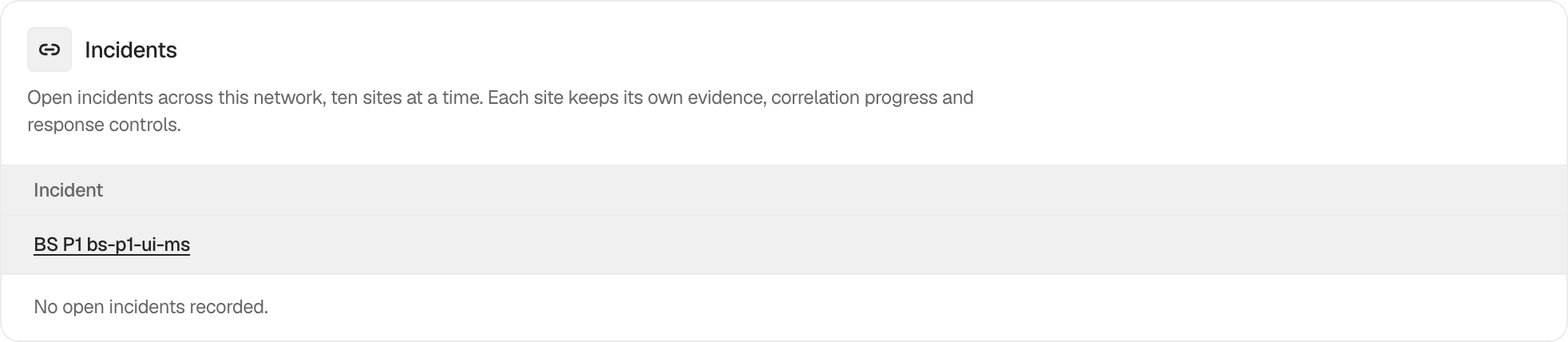
Review open incident correlations across multisite, grouped by site, and open the site-level evidence.
In BetterShield, open Network Admin › BetterShield › Activity › Incidents.
What it does
The tab lists open incidents by site, ten sites at a time. It provides network-level triage while the detailed timeline, related activity, response plan, and review state remain on the individual site.
An incident is a correlation of recorded evidence, not a verdict about intent or the condition of the site.
Step 1: Review Network Incidents
Let the shared-table migration complete, open the Incidents tab, and select a site or incident to review its site-level evidence.
Recommended settings
Start with the newest or highest-impact site group. Compare it with network maintenance and account administration before responding.
What it can break and how to undo
The network list is read-only. Actions taken after opening the site-level incident can affect accounts or files and use their own reversal steps.
Final Outcome
The site and open count should match that site’s own Incidents tab. Opening a row should lead to the correct site context.
Related
- Review and manage grouped incidents
- Read an incident’s evidence and related activity
- Monitor the network log migration
This is how you can review network incidents with BetterShield.
Getting Stuck? Feel free to contact our Dedicated Support Team.