How To Read the Evidence Behind a Finding With BetterShield?
Open a finding to see why it matters, what to consider first, its score effect, and the evidence BetterShield checked.
In BetterShield, each row on BetterShield › Findings has Explain, which opens the facts behind that result.
What it does
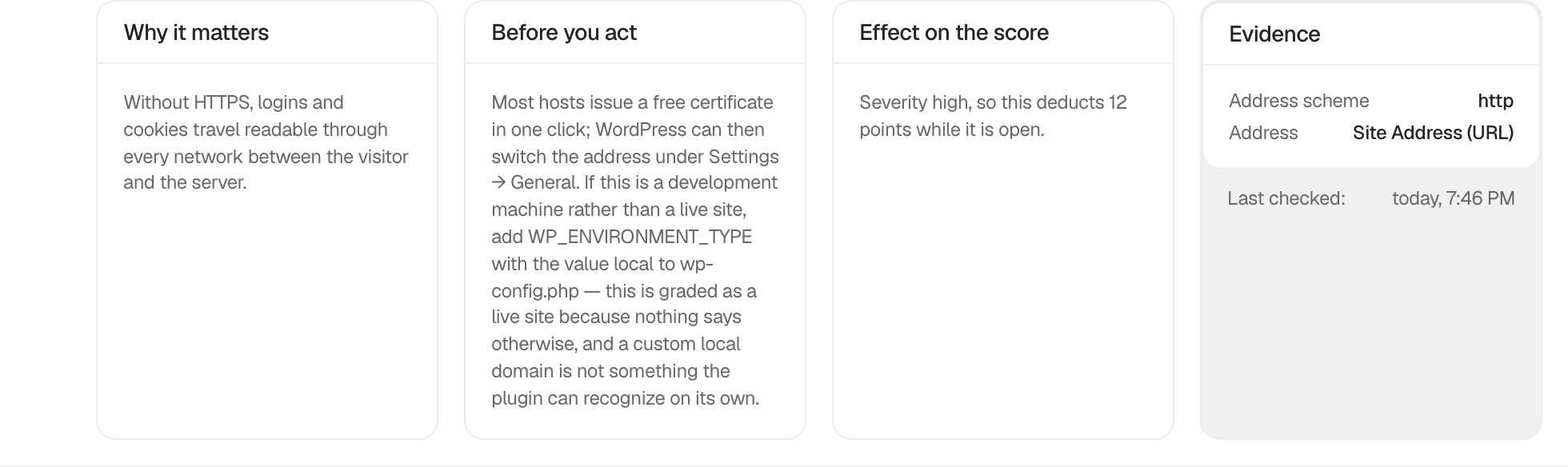
The expanded row contains:
- Why it matters, which explains the practical concern.
- What to know first, which identifies likely compatibility or operational effects.
- Effect on the score, which names the severity and points.
- Evidence, which shows the values used by the check.
- Last checked, which tells you how current that evidence is.
A finding’s link, such as Open Login & Access, opens the setting that answers it and brings that setting into view. Check Again reads the check again and, if the finding is still open, says what it still sees.
Step 1: Read the Evidence Behind a Finding
Select Explain on any finding. No setting is required. If a connected WordPress AI provider is available, Explain This in Plain Language can rewrite the recorded evidence without changing the finding.
Recommended settings
Read What to know first before using a correction or changing WordPress by hand. Findings update on their own after a fix or a settings change in BetterShield. If Last checked predates a change made outside BetterShield, press Check Again.
What it can break and how to undo
Opening the explanation is read-only. Actions beside it can change the site and have their own reversal steps.
Final Outcome
Confirm that all four panels open and that Evidence contains values rather than a pass/fail claim alone.
Related
- Apply a fix from a finding
- Ask for a plain-language audit explanation
- Run and monitor scheduled audits
This is how you can read the evidence behind a finding with BetterShield.
Getting Stuck? Feel free to contact our Dedicated Support Team.