How To Read the BetterShield Ultra Overview?
See every Ultra feature, its current state and the screen where you can change it.
With BetterShield Ultra, see every Ultra feature, its current state and the screen where you can change it.
Note: These controls require the paid BetterShield Ultra add-on alongside the free BetterShield plugin.
What it does
Open BetterShield › Ultra › All Ultra features. The overview lists Ultra’s features and whether each is switched on, off or unavailable. A card can require your password before its status is shown. A connected assistant can read the overview too, subject to its connection permissions.
Step 1: Open the feature
Activate Free and Ultra on the same site.
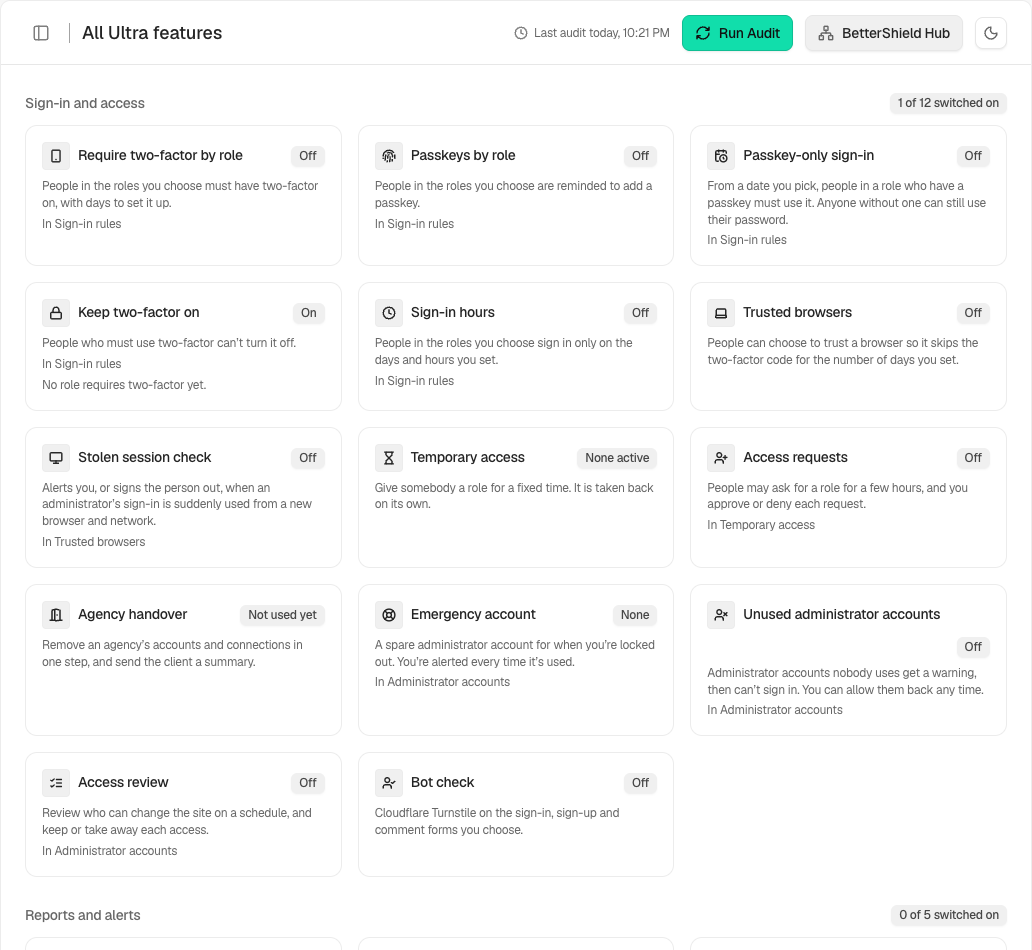
Step 2: Read the BetterShield Ultra overview
- Open Ultra › All Ultra features.
- Read each card’s state and open its In… link to reach that feature’s settings.
- If the card says the site asks for your password, open the feature and complete that confirmation.
Recommended settings
Our advice: review this screen after setup, after changing a policy and before preparing a client handover. Read unavailable states before assuming a feature is protecting the site.
What it can break and how to undo
The overview reads settings; opening it does not enable the features. Change a feature only from its own screen and use its own reversal instructions.
Final Outcome
Compare a card with the actual saved settings on its feature screen. A failed read should say it could not be read, rather than display an off or clean state.
Related
This is how you can read the BetterShield Ultra overview.
Getting Stuck? Feel free to contact our Dedicated Support Team.