How To Add and Use Passkeys With BetterShield?
Add up to 10 passkeys per account, sign in with the Sign in with a passkey button, and know when a passkey counts as both factors.
With BetterShield, add up to 10 passkeys per account, sign in with the Sign in with a passkey button, and know when a passkey counts as both factors.
What it does
In BetterShield, a passkey is a key your device keeps and unlocks with your fingerprint, your face or your device PIN. The site stores only the public half, there is nothing to type, and your browser offers it only to this site’s own domain, so a copy of your sign-in page on another domain cannot get it from you. Add one on the Passkeys card at BetterShield › Protection › Two-Factor, under Passkeys on your Profile screen, or on My Account › Sign-in security in a store.
- A passkey is an extra way in, never a replacement. Your password, backup codes and recovery link keep working, unless your role is set to Passkey-only sign-in.
- The site’s sign-in page (wp-login.php) shows Sign in with a passkey below the Log In button, once any account on the site has a passkey and passkeys work here. Browsers that cannot use passkeys do not show it. Press it, confirm on your device, and you are signed in. No username is needed.
- Every other sign-in rule still applies to a passkey sign-in, such as lockouts. Remember Me and the page you were heading to are kept.
How a passkey counts depends on how your device unlocked it:
| Unlocked with | Account without two-factor | Account with two-factor |
|---|---|---|
| Fingerprint, face or PIN | Signed in | Signed in, no code asked: the passkey counts as both factors |
| Only a touch (a key that checks presence, not who you are) | Not accepted on its own. Sign in another way. | Goes on to the Authenticator app code or backup code screen, as a password would |
During safe mode a touch-only passkey is accepted on its own. A passkey does not count toward Require two-factor: that asks for the app codes.
Step 1: Open Name this device
Type a name in Name this device, such as Work laptop. It is required, up to 191 characters, and is how you tell passkeys apart when one has to go.
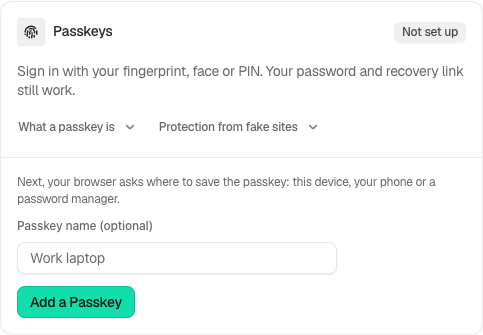
Step 2: Add and Use Passkeys
- Press Add a passkey. It reads Waiting for your device… while your device asks.
- Prove it is you when asked: a current code from your app or a backup code if your account uses two-factor, otherwise your password, or one of your passkeys if you sign in with a passkey only. Removing a passkey asks the same.
- Confirm with your fingerprint, face or PIN.
| Requirement | Without it |
|---|---|
| HTTPS (localhost works for development) | The card says: “Passkeys need HTTPS. Browsers refuse to create or use one on an insecure connection, so this stays switched off while this site is addressed over plain HTTP.” |
| The OpenSSL extension on the server | “This server is missing the OpenSSL extension, which is needed to check a passkey signature.” |
| A browser that supports passkeys | “This browser does not support passkeys. Try a current version of Chrome, Safari, Edge or Firefox.” |
| Fewer than 10 on the account | The name field goes away. The profile says “This account holds 10 passkeys, which is the limit. Remove one before adding another.” |
If a device declines, the card says so and nothing changes. “This device already holds a passkey for this account.” means it is already on the list. If nothing asks after a while, the card suggests looking for a password manager asking in its own window.
For the first passkey of an account in a passkey-only role, BetterShield asks the browser for one the device unlocks with a fingerprint, face or PIN, because that passkey will replace the password.
Remove one
On Protection › Two-Factor, each passkey shows “last used” with a date, or “never used”. Remove says “This passkey stops signing you in, and every other device signed in to your account is signed out. If a passkey is required for your role, add another before removing your last one.” and waits for Yes, do it. On the profile and My Account, the list shows each name with Remove and asks your browser to confirm.
Removing a passkey signs your account out everywhere else; the browser you removed it from stays signed in. Nobody can add a passkey for someone else. An administrator can remove all of an account’s passkeys with Remove this account’s passkeys on its Edit user screen, for someone who lost the device. Deleting an account, or erasing its personal data, removes its passkeys.
Recommended settings
- Add a passkey on each device you sign in from, at least two, so losing one device does not lose your only passkey.
- Use passkeys your device unlocks with a fingerprint, face or PIN. They sign in without a code even on a two-factor account.
- Keep two-factor on as well. It covers the day you sign in from a device without your passkey.
- Name each one after the device, so you know which to remove when a device is lost or sold.
What it can break, and how to undo
- No HTTPS: passkeys stay off, and the card says why. Nothing else changes.
- Other sign-in forms: the button is on wp-login.php only. A store’s My Account or checkout form, and sign-in forms on other pages, have no passkey button; use the site’s sign-in page.
- A page cache on the sign-in page can serve a stale copy. Exclude the sign-in address from caching (Findings reports Your sign-in page is being cached, Medium).
- Removing a passkey ends the account’s other sessions, as above.
- To undo an added passkey, remove it.
Final Outcome
The passkey is listed with its name. After a sign-in with it, “last used” shows the date.
- Activity log: “Passkey added”, “Signed in with a passkey”, “Passkey removed”, “Sessions ended after a credential change”.
- “Passkey added” and “Passkey removed” are High on an admin or editor account (the Administrator or Editor role, any role that can manage settings, edit users or promote users, or a super admin), and emailed as they happen (when instant alerts are enabled). Otherwise Medium.
- “Passkey refused” (High) means a passkey’s signature did not check out, or its usage counter went backwards, which can mean it was copied. Remove that passkey and add a new one.
On multisite
Sites that use the network’s own domain, or a subdomain of it, share passkeys: one added on any of them works on all, and the limit of 10 counts per account across the network. A site on a domain of its own keeps its own. A passkey made on a site before passkeys were shared is listed as “Made for this site before passkeys became network-wide. Enroll again to use it everywhere.”
Related
This is how you can add and use passkeys with BetterShield.
Getting Stuck? Feel free to contact our Dedicated Support Team.