How To Move Existing Two-Factor Accounts to BetterShield?
Keep supported authenticator apps when switching to BetterShield, review accounts that need setup again, issue new backup codes and undo the transfer.
With BetterShield 1.1.6 or newer, supported authenticator apps can keep working when you choose BetterShield for two-factor in Quick Setup and deactivate their original plugin. Review the account preview before switching.
What can move
| Source | What BetterShield can bring over |
|---|---|
| Two Factor | Supported authenticator-app setups |
| WP 2FA | Supported authenticator-app setups that can be read |
| Wordfence or Wordfence Login Security | Supported authenticator-app setups |
| Other recognized two-factor plugins | Review the preview; recognition alone does not mean accounts can move |
Email codes, security keys and unreadable authenticator setups do not become BetterShield authenticator-app enrollments. People who cannot move are identified in the preview and notified after the source is deactivated. Accounts already set up in BetterShield keep their existing setup.
Backup codes never move. Everyone whose app moves must issue new BetterShield backup codes. A settings export or import does not transfer an authenticator app; the transfer happens when the source plugin is switched off after you have made the two-factor choice.
Step 1: Prepare Recovery and Keep Your Current Session
Update BetterShield, keep a working administrator session open, and save a recovery link or recovery codes outside the site. Tell affected people to keep their authenticator app available.
Step 2: Choose BetterShield in Coexistence
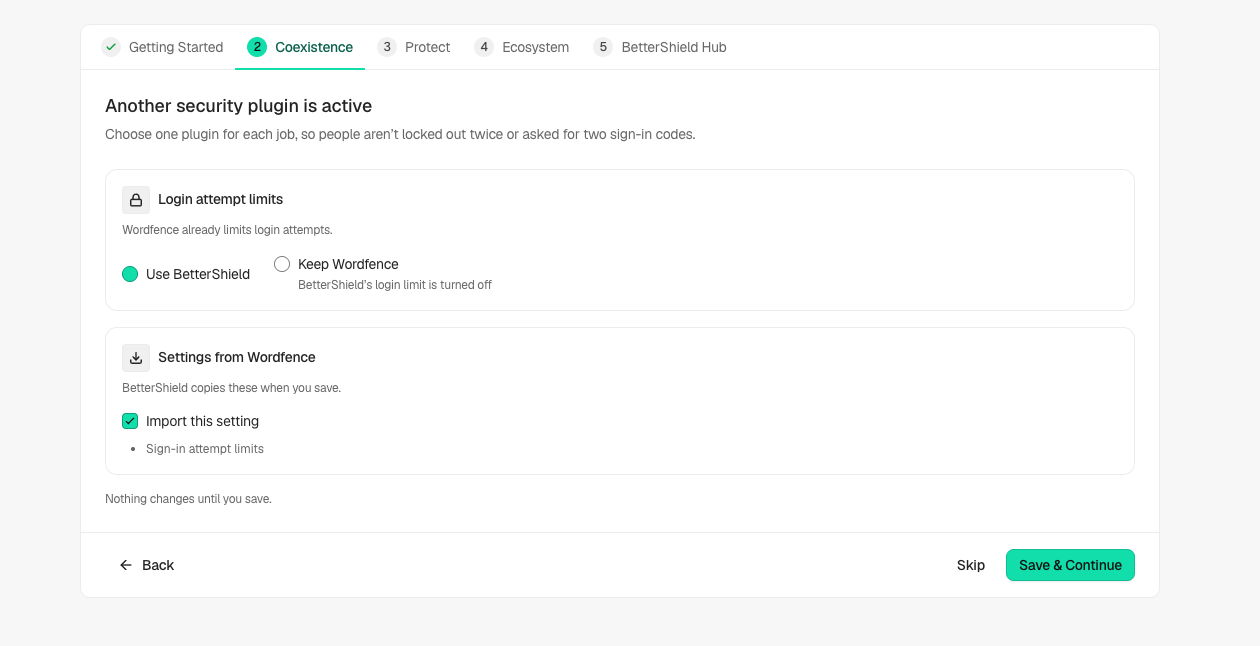
Open Quick Setup and its Coexistence step. On an existing installation, use Run Quick Setup again under Settings › General. An overlap card on the Overview can also offer Migrate.
Choose Use BetterShield for two-factor. Review how many accounts keep their app, which are already set up here, and who must set up again. Review every other job the source plugin performs before deactivating it.
Step 3: Deactivate the Source When Ready
Read the main action. When all shared jobs move and setup can switch a plugin off, it offers Migrate & Deactivate, with a count for several plugins. Mixed choices use Save & Continue. A plugin kept for another job can remain active; use the indicated Plugins screen when you are ready to deactivate it.
The supported authenticator transfer runs on deactivation after BetterShield has been chosen for two-factor. Deactivation stops all of the source plugin’s features. If it is active across a multisite network, ask the network administrator to review and perform that change.
Step 4: Test Sign-in and Replace Backup Codes
Keep your existing administrator session open. In a separate browser session, test an affected account with its password and current authenticator code. The same app entry should work for an account that moved successfully.
Each person then opens their Profile or Protection › Two-Factor and issues new backup codes using a current app code. Store the new codes with Copy Codes or Download Codes. People named as unable to move must set up their authenticator app again.
Undo the Transfer
The transfer is recorded in the Activity Log. Find it under Activity › Recorded changes and select Undo. Undo removes an imported setup only while it is still the setup that was brought over. An account that has since set up two-factor again keeps its newer setup.
Undo does not reactivate the source plugin. Its original settings remain available when you reactivate it through Plugins. Review which plugin handles two-factor afterward, and test sign-in again before ending your administrator session.
Final Outcome
Confirm the transfer receipt and Activity Log, test sign-in with an app that moved, and check that affected people have new backup codes. Check every account that needs setup again before treating the switch as complete.
Related
- Alongside another security plugin
- Two-factor with an app
- Switch from Wordfence
- Move settings between sites
- Locked out
Getting Stuck? Feel free to contact our Dedicated Support Team.