How To Limit Failed Sign-in Attempts With BetterShield?
Set how many wrong passwords BetterShield allows, how long a connection is locked out, and how the unlock email, Lockouts list and proof of work work.
In BetterShield, Sign-in attempt limits stops password guessing by locking out the connection that keeps getting it wrong. The account is never locked, so its owner can still sign in from anywhere else. It is on by default, under Sign-in protection on BetterShield › Protection › Login & Access, and the lockouts it makes are listed under Lockouts on the same screen.
What it does
- Counts failures per connection. A connection is one IPv4 address, or one IPv6 /64 network. When Failures allowed is reached within Counted within (minutes), sign-in from that connection is locked out for Lockout lasts (minutes).
- What counts: a wrong password, a username or email address that matches no account, a wrong two-factor code and a wrong application password, on every way WordPress checks a password, XML-RPC included.
- What never counts: a refusal BetterShield makes itself, such as a running lockout, an address or user-agent entry on Never allowed to sign in, the hidden bot check, an unsolved proof of work, the site lockdown, or a correct password refused by another plugin or because the account signs in with a passkey only. A name on Never allowed to sign in locks out the connection on its first try, without the usual few tries (see Allow and block lists).
- While locked out, the sign-in form tells that connection about how many minutes to wait, and that the link in an email about it, if one came, ends it now. Application passwords from that connection stop working too. Browsing is untouched.
- Only verified addresses are locked out. Behind a proxy on a private address that is not named, failures are recorded but nobody is locked out; a proxy on a public address that is not named counts as one visitor, so name it either way. See Proxies and Cloudflare. Addresses on Always allowed are not counted at all.
- Repeats lock out longer. Each earlier lockout of the same connection within the last day doubles the next, up to a day: with the defaults, 15 minutes, then 30, 60 and so on. A lockout ended with Release Now or the unlock link starts the count over.
- Can tell the server’s firewall. With Send lockouts to the server’s firewall on, each lockout also writes one line to the server’s auth log, naming the network, for a firewall jail such as Fail2Ban. It is off by default. See Server firewall.
The unlock email
BetterShield automatically emails a lockout notice only when the account has used that network within the last 30 days, or its correct password was used. On a new network, choose Email Me an Unlock Link on the sign-in screen and enter your username or email address. A link is sent only when that lockout qualifies, to the address already saved on the account.
A correct-password notice asks the owner to change their password. A lockout caused by a blocked username, or attempts at several accounts, does not provide an unlock link. The request page gives the same response whether a link can be sent or not.
The link opens Clear the sign-in lockout?, which changes nothing until Clear the Lockout is pressed, so a mail scanner opening it does not lift the lockout. It works once, only while that lockout runs, and only for sign-in. If someone else was guessing, letting the lockout run out is safer, and the page says so. An account gets at most about one such email an hour.
Step 1: Open BetterShield › Protection › Login & Access
Open BetterShield › Protection › Login & Access and check that Visitor addresses in the summary reads Readable.
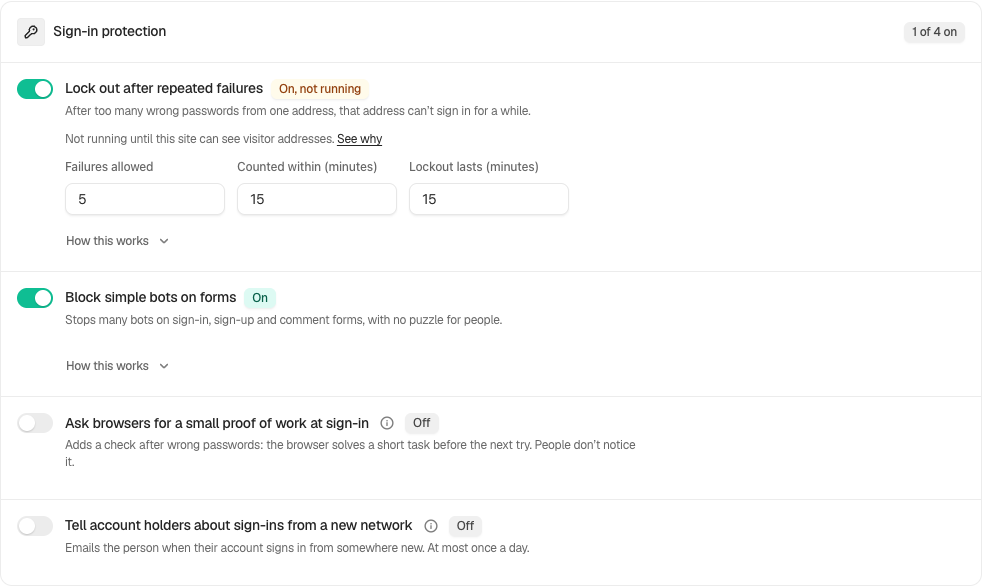
Step 2: Lock out sign-in after repeated wrong passwords
- Under Sign-in protection, turn on Sign-in attempt limits. Its numbers open below it.
- Change the numbers if you need to, then press Save in the bar at the bottom.
| Option | What it does | Default |
|---|---|---|
| Sign-in attempt limits | Counts failures and locks out a connection that reaches the limit. Off, the lists and form limits keep working. | On |
| Failures allowed | Failures from one connection before it is locked out: 3 to 100. | 5 |
| Counted within (minutes) | How far back failures are counted: 1 to 1440. The proof of work uses the same window. | 15 |
| Lockout lasts (minutes) | The first lockout: 1 to 1440. Repeats within a day double it, up to a day. | 15 |
| Ask for a sign-in puzzle after wrong passwords | The proof of work, below. It adds a check after wrong passwords. | Off |
When a number differs from its default, “Default:” appears under it with Use It to put it back.
The proof of work: Ask for a sign-in puzzle after wrong passwords
It is asked only after wrong passwords, never on every sign-in. After two failed sign-ins from one connection within Counted within (minutes), the sign-in form says it is checking the browser, and the browser works out a small calculation in the background before the next attempt is accepted. Each further failure makes it a little harder, up to a limit, and it lifts on its own once the counting window passes.
- It needs JavaScript, and the site on HTTPS (or localhost). On plain HTTP the switch says “Needs HTTPS. Your site isn’t using HTTPS yet, so this is off.” and sign-ins skip it.
- It needs Sign-in attempt limits on, because it reads the same count.
- It appears on the WordPress sign-in page (at a moved sign-in address too) and on the WooCommerce My Account sign-in form.
- It is never asked of unverified connections or Always allowed addresses, which are never locked out either, nor of application passwords, XML-RPC, the REST API, WP-CLI or sign-ins sent in the background. The lockout still covers those last five.
- A browser that cannot run it is told to wait a few minutes. An unsolved proof of work never counts toward a lockout.
- The finding Sign-in doesn’t slow down password guessing (Low) offers Apply Fix, then Turn On Sign-in Puzzle and Yes, Apply It, with Undo afterwards. It cannot be applied while sign-in protection is off, and says “Sign-in protection is off, and the sign-in puzzle needs it. Turn it on in Login & Access first.” After a few wrong passwords the next try needs JavaScript.
Recommended settings
We recommend the defaults, plus the proof of work on any site served over HTTPS: it costs nothing until a connection has failed twice. Keep Lockout lasts (minutes) short and let the doubling deal with a connection that keeps coming back. A permanent block belongs on Never allowed to sign in, where it is a named decision.
| Site | What we recommend |
|---|---|
| Membership or course site | If many members sign in from one school or company network, add its fixed address to Always allowed. If you cannot, raise Failures allowed to about 10. |
| Agency or many sites | Add your office’s fixed addresses to Always allowed on each site, so a colleague’s typos never lock out the whole team. |
What it can break, and how to undo
- An office behind one address. Everyone there shares one connection, so one person’s typos lock out sign-in for all of them. Add the address to Always allowed, or press Release Now.
- A tool with an old password. An integration sending a stale application password can lock out its own server. Fix its credential, then Release Now.
- The proof of work without JavaScript. That person waits until the counting window passes, then signs in normally.
- Getting back in. Wait for the lockout to end, open the unlock email, ask another administrator to press Release Now, run
wp bettershield lockouts release <id> --user=<login>(or--allto let every locked-out connection back in at once), or use your recovery link orwp bettershield recover, which pause everything on this screen. See Locked out.
To stop locking out altogether, turn the switch off and Save. With password confirmation on, that asks for your password.
Final Outcome
The Lockouts list. Each row shows the network (a /24 or /64, the most of an address BetterShield keeps), Sign-in, the failed attempts and last username tried, and how long it lasts, with “longer because it came back within a day” for a doubled one. Running lockouts come first, marked Active with Release Now; ended ones read Released or Expired, and stay for 30 days. The Lockouts tile at the top counts the running ones.
- The activity log. “Sign-in failed”, “Sign-in lockout started” and “Sign-in lockout cleared”.
- Findings. Nothing is limiting sign-in attempts (High) appears when the switch is off and no other plugin BetterShield recognizes limits sign-ins. Failed sign-ins are not being counted, so password guessing is not stopped (High) appears when visitors cannot be told apart. Two plugins limit sign-in attempts (Low) appears when this switch is on and another active plugin limits sign-ins too; the switch then says so, with Choose a Plugin in Quick Setup.
- Overview. After 14 days of history, “Unusual for this site” notes an hour with at least 20 failed sign-ins and more than five times the usual hour.
- A test. From a phone on mobile data, sign in to a test account with a wrong password five times. Watch the row appear. On a new connection, use Email Me an Unlock Link; an automatic email is conditional. Then press Release Now.
On multisite
An account is the same on every site of a network, but each site counts its own attempts and keeps its own lockouts. The screen says so beside the numbers.
Related
This is how you can limit failed sign-in Attempts with BetterShield.
Getting Stuck? Feel free to contact our Dedicated Support Team.