How To Sign People Out and Limit Sessions With BetterShield?
Set an idle sign-out and a per-account session limit, see who is signed in, and sign one account or everyone out with BetterShield.
WordPress keeps a session for each sign-in on each device, for two days, or fourteen with Remember Me ticked. BetterShield adds an idle sign-out, a limit on sessions per account, a list of who is signed in, and two ways to sign people out. They are under Signed-in devices on BetterShield › Protection › Login & Access. Both limits are off by default.
What it does
Sign out after idle
Ends a session that has gone this many minutes without activity.
- It applies to every account’s browser sessions, every role, store customers and members included. It cannot be set per role.
- Activity is opening a page, or anything a person does that saves something: a post save, an autosave, an upload, a settings change. The dashboard’s background check-in does not count, so a tab left open is still signed out.
- Idle time is counted from the moment you switch it on, so nobody is signed out the instant you save, you included.
- On a WooCommerce store, nobody is signed out on the cart or checkout, and time a shopper spends there counts as activity.
- The signed-out person finds out on their next request: they are simply signed out, and a dashboard page sends them to sign in, or answers 404 while Dashboard privacy for visitors is on. A save made in the background is refused with “Your session ended after being idle. Sign in again to continue.” No email is sent.
- Application passwords have no session, so they are not affected.
Sessions per account
When an account signs in and then holds more sessions than the limit, its oldest sessions (by sign-in time) end. It applies to every role. Where another plugin has replaced how WordPress stores sessions, the field is unavailable and says so; signing people out still works.
Who is signed in
Every account with a live session, of any role, with its roles and “you” beside your own. Each session shows when it signed in, when it was last seen and its network (a /24 or /64, never a full address). On a store this includes customers. It lists 50 accounts at a time: on a busier site it reads, for example, “Showing 50 of 120 signed-in accounts.”, with Show more to list the next 50. With nobody signed in, it reads “Nobody is signed in right now.”
Signing people out
| Button | What it ends | What it leaves |
|---|---|---|
| Sign out all their sessions (beside an account) | Every session that account holds, on every device. On your own row, that includes the one you are using, and you land on the sign-in page. | The account and its password, and its application passwords. Needs permission to edit that account. |
| Sign out everyone you can (below the list) | Every session of every account you may edit, yours included. An administrator can edit everyone. One press reaches up to 500 accounts, network administrators and staff accounts first; on a larger site, press it again. | Accounts you cannot edit, which the confirmation counts for you. Passwords and application passwords. |
Both ask first: the confirmation says what will happen, naming you when your own session is included, with Yes, do it and Cancel.
Each person’s own sessions
Every user also sees Where you are signed in on their own profile, and store customers see it on My Account under Sign-in security. This was not me ends one session, and Sign out everywhere except this device ends the rest. See Your profile.
When a credential changes
When an account’s password changes, BetterShield ends that account’s other sessions. Someone changing their own password keeps the device they did it on; a password changed by an administrator or through a reset link ends every session. The same happens when a second factor or passkey is removed, or a role change gives or takes away a role that can manage settings or users.
Step 1: Open BetterShield › Protection › Login & Access
Open BetterShield › Protection › Login & Access and find Signed-in devices.
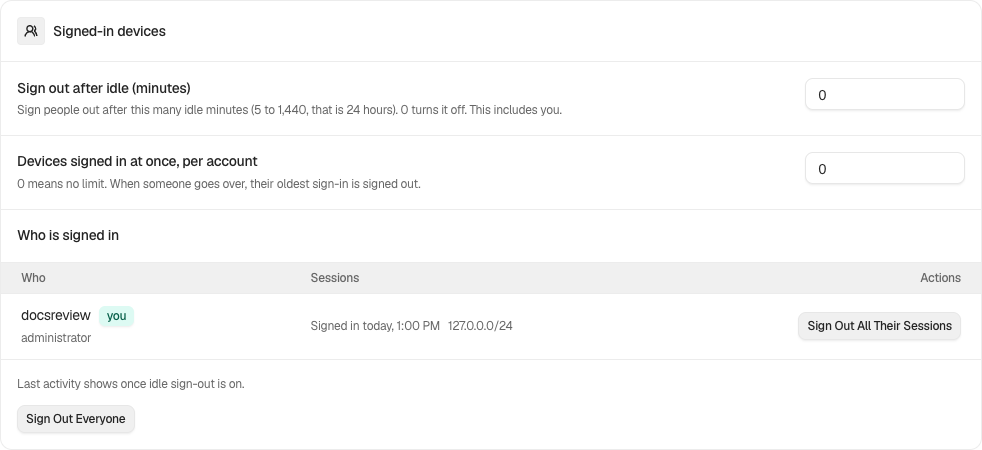
Step 2: Sign people out and limit sessions
- Type a number into Sign out after idle (minutes) and Sessions per account, or leave 0.
- Press Save.
| Option | What it does | Default |
|---|---|---|
| Sign out after idle (minutes) | 0 keeps sessions open, as WordPress does by default. Otherwise 5 to 1440 (a day). Applies to your own session too. | 0 (no timeout) |
| Sessions per account | 0 means unlimited. Otherwise 1 to 100; above the limit, the oldest session signs out. | 0 (no cap) |
Recommended settings
There is one timeout for everybody, so choose it for the people who sign in most.
| Site | What we recommend |
|---|---|
| Blog or brochure site | Sign out after idle (minutes) 120 when only staff sign in. Saves count as activity, but reading without saving does not, so do not go much shorter for writers. |
| Store (WooCommerce) | 0, or 1440 at most. Customers are included, and many expect to stay signed in between visits. |
| Membership or course site | 0, or longer than your longest lesson or video, since watching makes no requests. Sessions per account 2 or 3 discourages shared logins while leaving room for a phone and a laptop. |
| Agency or many sites | 60 to 120 on client sites where only staff sign in. |
Leave Sessions per account at 0 unless you have a reason; a limit of 1 signs people out of their phone every time they use their laptop.
What it can break, and how to undo
- Signed out mid-task. Someone reading or reviewing without saving for longer than the timeout is signed out. They sign in again; nothing about the account changes.
- Customers signed out. The timeout reaches every role. Raise it or set it back to 0.
- Devices pushing each other out. With a low limit, each new sign-in ends the oldest session.
- Signing yourself out. Both buttons include your own session when they reach you; the confirmation says so.
Setting either number back to 0 and pressing Save turns it off. Ended sessions stay ended, and people sign in again with their usual password. With password confirmation on, loosening a limit and both buttons ask for your password.
Final Outcome
Who is signed in, and the Signed in count in the summary strip.
- The activity log: “Sessions signed out” for an idle sign-out, a session over the limit or either button; “Signed out of a device” when someone uses their own list; “Sessions ended after a credential change”.
- WP-CLI:
wp bettershield diagnosticsprints the idle timeout and session cap, and says when the cap cannot be applied on this site.
On multisite
A session belongs to the account, and the network shares accounts, so ending a session ends it on every site. On a site of a network, an administrator who does not manage the network reaches only their own sessions with Sign out everyone you can.
Related
This is how you can sign people out and Limit sessions with BetterShield.
Getting Stuck? Feel free to contact our Dedicated Support Team.