How To Connect Alert Destinations With BetterShield Hub?
Send workspace alerts to Slack, Microsoft Teams or a signed webhook, test delivery and choose the alert types each destination gets.
In BetterShield Hub, Alert destinations under Settings › Workspace send workspace alerts to Slack, Microsoft Teams or an HTTPS webhook.
Note: Sign in to your free BetterShield Hub account. Your workspace role and site permissions determine which information and actions you can use.
What it does
These destinations belong to the free Hub workspace; they do not require Ultra. They are separate from Ultra alert destinations configured on a WordPress site. Editing one does not update the other.
Destinations add a shared channel beside each member’s own email and Hub bell. A destination can be on, off, trying again or failing. You can send a test, edit it or delete it.
Step 1: Open Settings › Workspace
Open Settings › Workspace and select Add a destination.
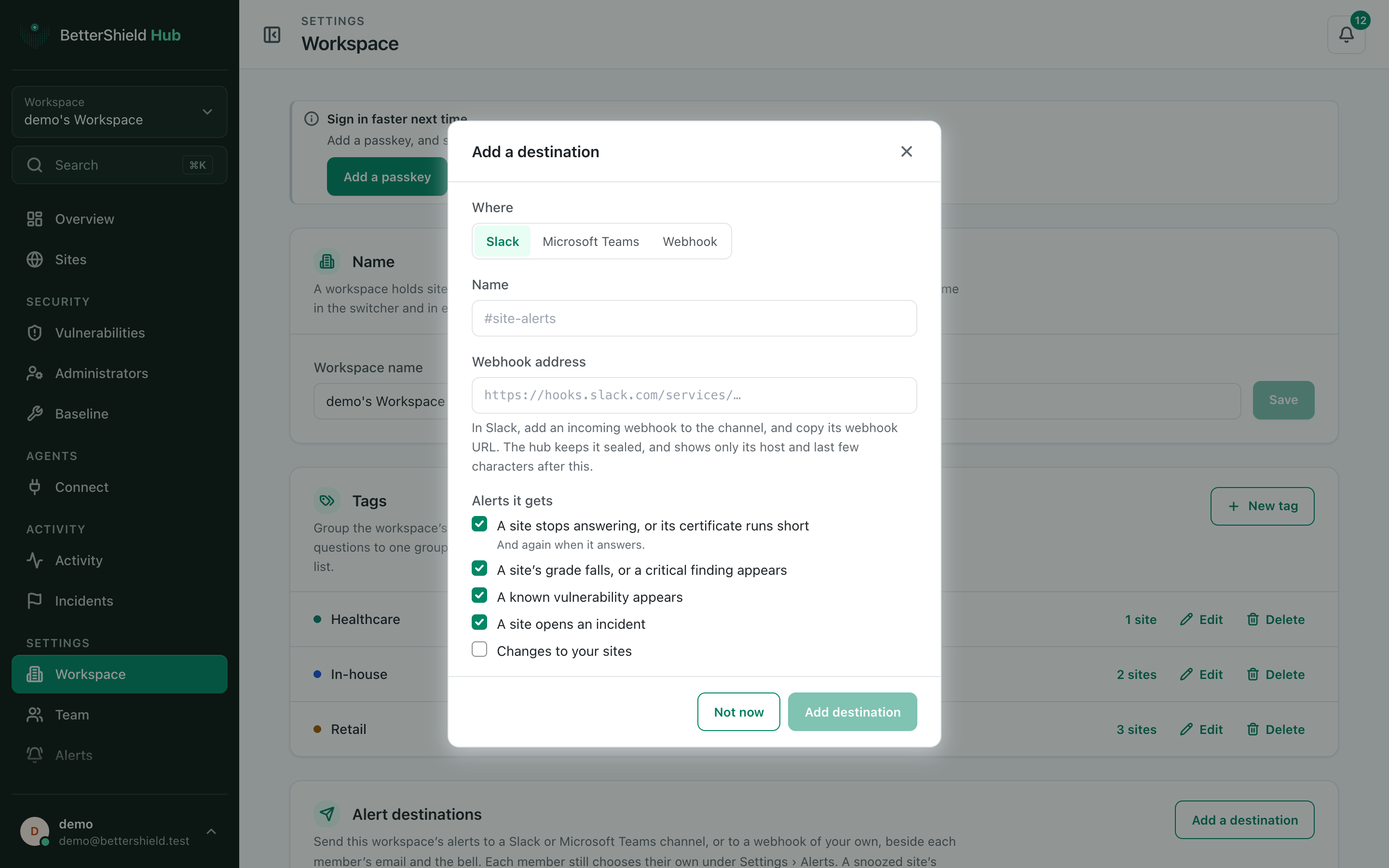
Step 2: Send BetterShield Hub alerts to workspace destinations
- Under Where, choose Slack, Microsoft Teams or Webhook. Slack is the default.
- Enter Name and the webhook Address.
- Under Alerts it gets, choose the alert types. By default, outages, posture changes, known vulnerabilities and incidents are selected; Changes to your sites is not.
- Select Add destination, then Send a test.
A webhook receives a signing secret once. Copy it then, because Hub does not show it again.
Recommended settings
Our advice:
- Use a channel watched by the people responsible for the included sites.
- Add change alerts only where the extra volume is useful.
- Verify webhook signatures and reject old timestamps.
What it can break and how to undo
A wrong address or removed channel stops delivery there. Hub retries failed alerts and can mark the destination failing.
Turn off Send alerts to pause it, edit the address, or delete it. Deleting also discards alerts still waiting for that destination.
Final Outcome
Send a test reaches the destination.
- The row shows On and a successful last-alert time after delivery.
- A webhook accepts a valid Hub signature and ignores repeated alert IDs.
Related
This is how you can connect alert destinations with BetterShield Hub.
Getting Stuck? Feel free to contact our Dedicated Support Team.