How To Invite Someone to a BetterShield Hub Workspace?
Invite a person to BetterShield Hub with a role and access to every site or one selected site.
In BetterShield Hub, Invite someone on Settings › Team creates a workspace invitation with a role and site scope.
Note: Sign in to your free BetterShield Hub account. Your workspace role and site permissions determine which information and actions you can use.
What it does
Hub emails the invitation when mail is available. Otherwise it shows an Invitation link to copy. Pending invitations can be reviewed or withdrawn from the Invitations card.
Step 1: Open Settings › Team
Open Settings › Team and select Invite someone.
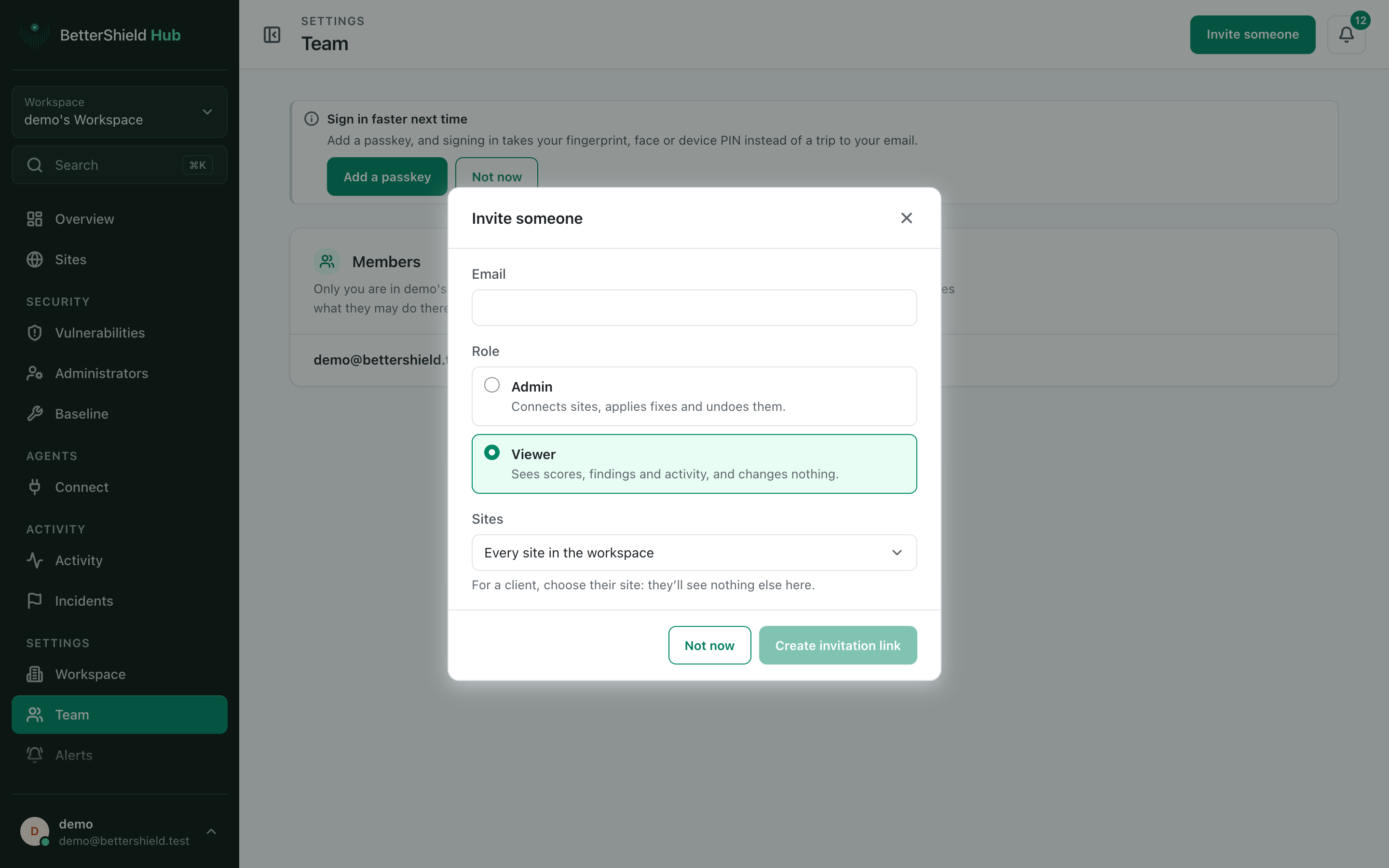
Step 2: Invite someone to a BetterShield Hub workspace
- Enter the person’s email address. It starts empty.
- Choose Viewer, Admin or Owner. Viewer is the default.
- Choose Every site in the workspace (default) or one Only site.
- Send the invitation or copy its link when Hub provides one.
The invited person signs in with that address and confirms joining the named workspace.
Recommended settings
Our advice:
- Confirm the address before sending.
- Start with Viewer and one site when the person’s work is limited.
- Withdraw invitations that are no longer expected.
What it can break and how to undo
An accepted invitation grants the stated access. Change the member’s role or site scope, or remove the member, if it was too broad.
Withdrawing a pending invitation stops its link. Send a new invitation if needed.
Final Outcome
The invitation appears under Invitations.
- The recipient can open the invitation and see the workspace name.
- After acceptance, the person appears under Members with the chosen role and scope.
Related
This is how you can invite someone to a BetterShield Hub workspace.
Getting Stuck? Feel free to contact our Dedicated Support Team.