How To Hold Events for the Weekly Summary With BetterShield?
Hold one routine event type for the weekly summary. With instant alerts enabled, critical events bypass this per-type hold.
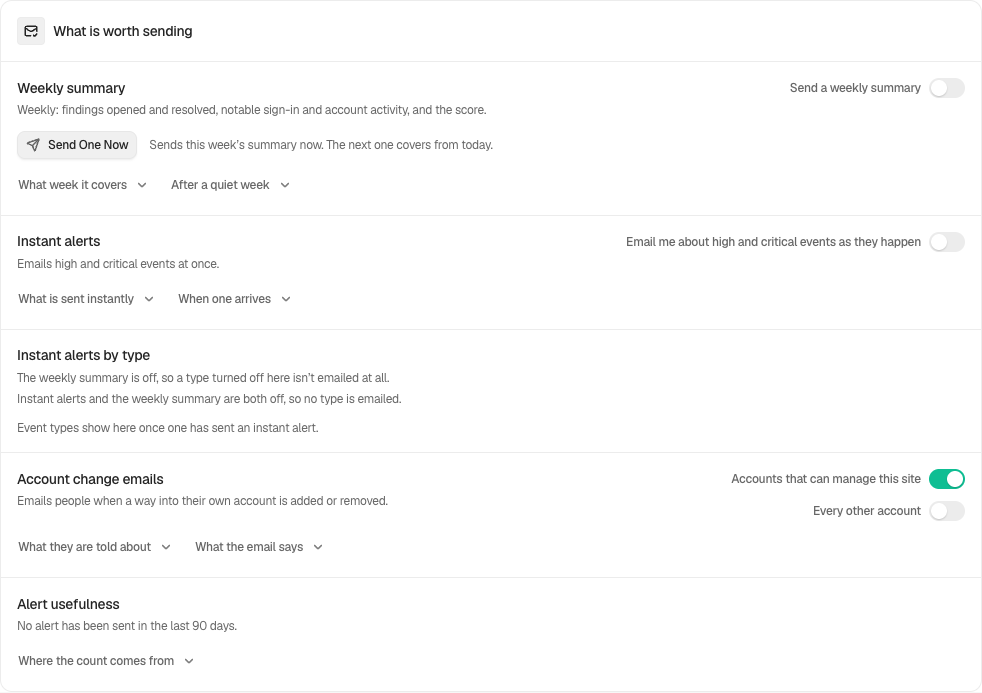
In BetterShield, the switches are under BetterShield › Settings › Email alerts › What gets emailed › Instant alerts by type.
What it does
The row, with the line “Turn a type off to get it in the weekly summary instead.”, lists each event type that has sent an instant email on this site within the activity log’s retention window. Types are grouped by area, the same areas as on Site activity. Each type has a switch, on by default.
Turn a type off and its new events are still recorded in full, but they no longer send an instant email. They appear in the weekly summary when it is enabled. With the summary off, an ordinary type held here is not emailed. The always-email exceptions below still apply.
With instant alerts enabled, critical events bypass this per-type hold. Host-managed alerts use a separate policy. The row says “Critical alerts are always sent at once.” A type that has been critical on this site is locked on, and a save that tries to turn it off is refused with “%s has been critical on this site, and critical alerts are always sent at once.”, with the type’s name in place of the first part. If a held type later has one critical event, that event is emailed at once.
Until an event type has sent an instant email, it is not listed. Then the row says “Event types show here once one has sent an instant alert.”
The switches are disabled while alerts are muted, and while Email me about high and critical events as they happen is off. With the summary enabled, ordinary event types wait for it. With both switches off, ordinary event emails stop. The screen explains that a few events still email at once, such as use of the trap password. Only muting alerts stops those messages.
Step 1: Open the feature
Open the row and find the type under its area.
Step 2: Hold an event type for the weekly summary
- Turn its switch off.
- The change saves at once.
| Option | What it does | Default |
|---|---|---|
| A type’s switch | Off holds that type for the weekly summary | On for every type |
Recommended settings
Our advice is to hold only routine types that are noisy on your site and rarely need a same-hour answer. Keep sign-in, account and file-change types instant.
What it can break and how to undo
A held type will not wake anyone. A real problem of that type, if it is rated high and not critical, waits for the next weekly summary. Turn the switch back on to restore instant email.
Turning a type off counts as making alerts quieter. With Ask for my password before removing a protection on under Settings › General, BetterShield asks for your password first. The change is recorded as “Alert settings changed”. The settings history can put it back.
Final Outcome
After the next event of that type, confirm it is in Site activity but no instant email came. Then select Send One Now under Weekly summary and confirm the summary lists it.
Events that still email with instant alerts off
Use of the trap password emails even when instant alerts are off. With BetterShield 1.1.6 and Ultra 1.0.7 or newer, Emergency account used emails even when instant alerts are off. Mute all alerts still silences it. Check the card’s delivery warning and configure an email recipient before relying on it. See Emergency account.
Related
- Send important security alerts straight away
- Send a weekly security summary
- Choose what each address gets
- Mute email alerts
This is how you can hold events for the weekly summary with BetterShield.
Getting Stuck? Feel free to contact our Dedicated Support Team.