How To Approve an Agent Connecting Itself to BetterShield Hub?
Connect an agent that cannot open an OAuth browser: review its Hub approval link, choose a workspace and access, then return the six-digit code.
An agent that cannot open an OAuth browser can connect through BetterShield Hub’s self-registration flow. The agent reads Hub’s connection instructions, registers, and gives you a link. You approve the request in your own browser, then give that agent the code Hub shows.
For an assistant with a normal OAuth browser flow, use Connect an assistant to Hub.
Step 1: Ask Your Agent To Read the Connection Instructions
Give the agent https:/. Those instructions describe registration, approval, claiming access and token renewal. Ask for read-only access if you only want an assessment.
The agent keeps its registration token and gives you the approval link. It does not need your password or a WordPress credential.
Step 2: Open and Review the Approval Link
Open the link from the agent you asked to connect. Sign in to Hub if prompted. On Approve an agent, review its name, the network it registered from, its software description and what it asks to do. Its displayed name is its own claim.
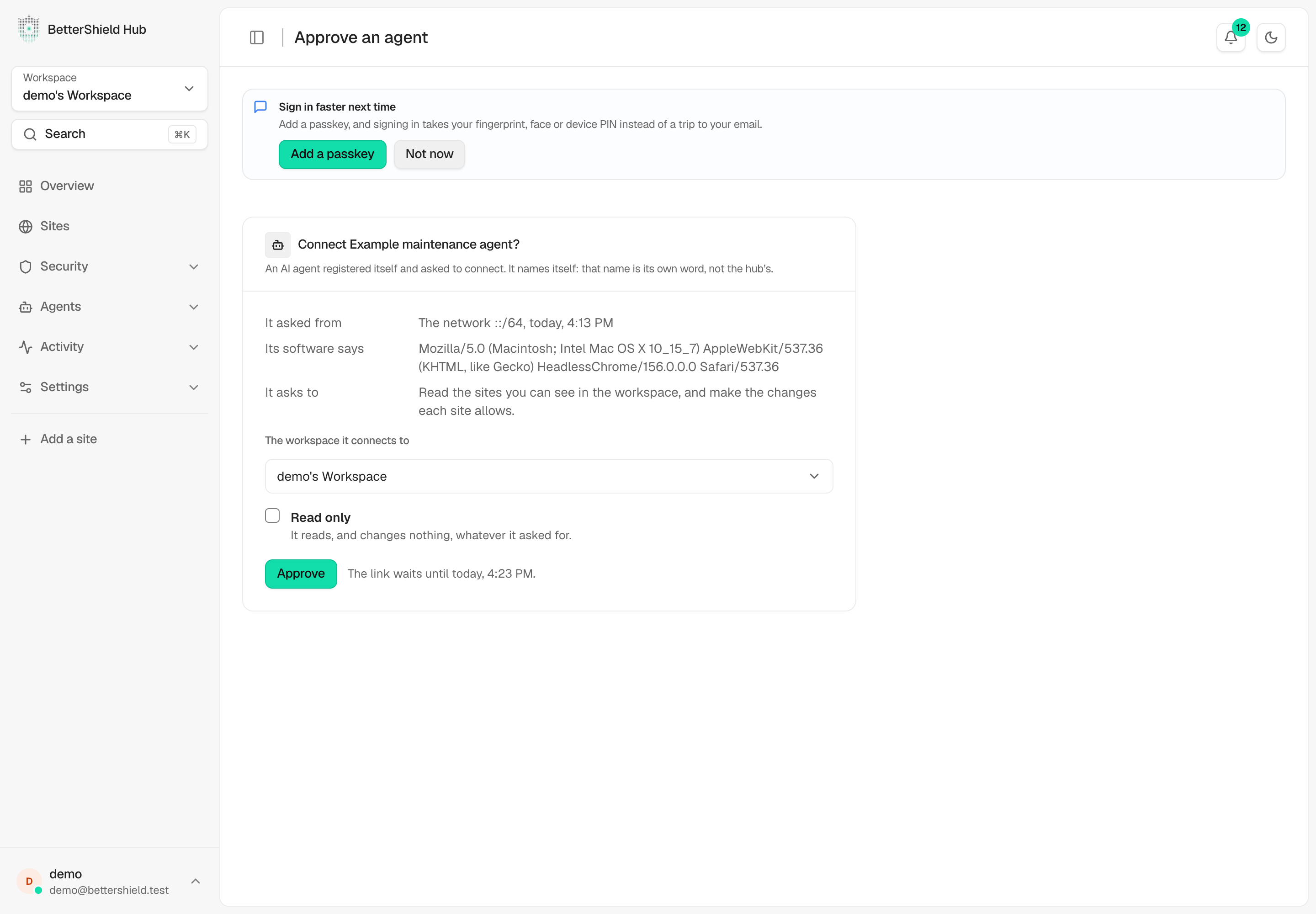
Step 3: Choose the Workspace and Access
Under The workspace it connects to, choose the workspace. If the agent requested changes and your role allows them, Read only lets you narrow the request. A viewer can approve reading only.
Select Approve and complete Confirm it’s you if asked. The page shows a six-digit code and its remaining time.
Step 4: Give the Code to the Agent You Started
Return that code to your agent. The agent exchanges its own registration token and the code for access to the selected workspace. The code flows from Hub to you to your agent.
Use the expiry shown on the page. An expired request needs a new registration; five wrong codes end a registration. Do not approve an unexpected link or pass its code to another requester.
Limit or End the Connection
The connected agent appears under Agents › Connect, with the other assistant connections. Use Limits to narrow its sites, tools or change access, or Disconnect to end it. A disconnected agent must connect again.
If an action times out, check the site’s result or Hub activity before repeating it. A timeout can mean the site is still completing the original change.
Final Outcome
The agent appears in Connected assistants and can read an allowed site. Check the workspace, role and limits before asking it to act on a live site.
Related
Getting Stuck? Feel free to contact our Dedicated Support Team.