How To Review Cloudflare Rule Plans in BetterShield Hub?
Review a connected Ultra site's plan to deploy Cloudflare's managed ruleset or challenge countries, then confirm or undo the exact rule.
In BetterShield Hub, a connected site’s BetterShield Ultra card can offer Cloudflare rule actions. The WordPress site prepares each plan and decides whether the action is allowed. Hub does not replace Ultra’s complete Cloudflare settings.
Note: Use a site running BetterShield Ultra 1.0.6 or newer with Cloudflare connected in WordPress. Your Hub role, the site’s connection and the tools it permits must allow the change.
Step 1: Open the Site’s Ultra Card
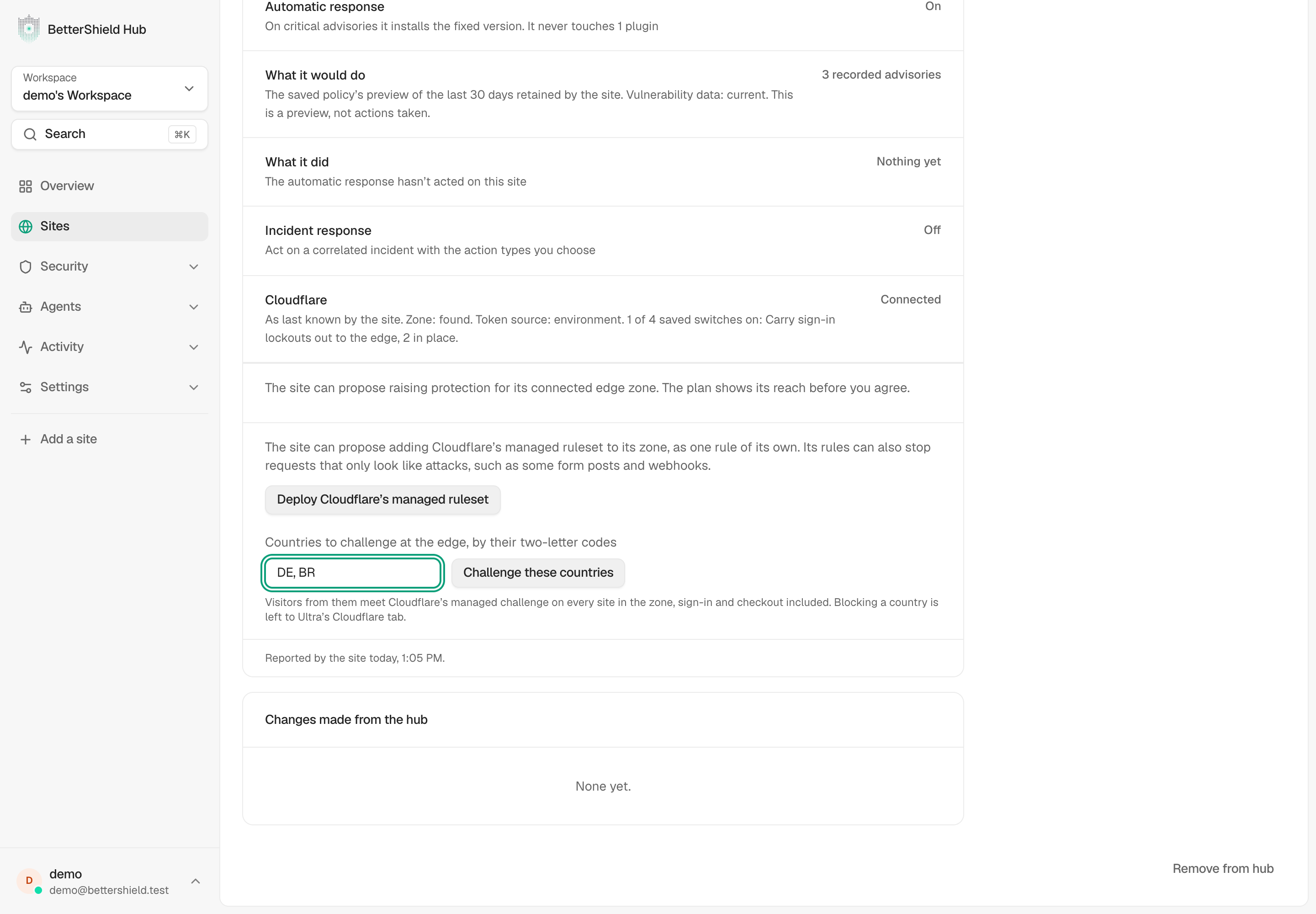
Open the site, then find BetterShield Ultra and its Cloudflare section. A rule action appears only when the site offers it and that rule is not already reported as on.
Step 2: Choose the Rule To Propose
| Action | What to review |
|---|---|
| Deploy Cloudflare’s managed ruleset | Adds Cloudflare’s managed ruleset as a rule on the connected zone. Check the site’s plan and the effect on forms and integrations. |
| Challenge these countries | Enter 1 to 50 two-letter country codes in the offered field. Visitors from those countries meet a managed challenge across every site in the zone, including sign-in and checkout. |
A browser user may pass a managed challenge; payment callbacks, uptime checks, feeds and other automated connections may not. Blocking countries remains on the WordPress site’s Ultra Cloudflare tab.
Step 3: Read and Confirm the Site’s Plan
Selecting an action asks the site for a plan. Read the zone, rule and scope before agreeing. Nothing changes at Cloudflare until you confirm the plan.
The site can refuse a change because of its permissions, Cloudflare connection, recovery state or protection state. Read the refusal rather than treating the action as applied.
Step 4: Check the Result and Its Undo
Read the result and check the rule’s state. Under Changes made from the hub, Take the rule off requests a separate plan to remove the exact recorded rule. Review and confirm that plan after the requested recent sign-in check.
If Hub reports that an action timed out, inspect the site or Hub activity before trying again: the original change may still be running.
Final Outcome
The rule’s reported state matches your confirmed plan and the change is recorded. Test affected visitor and integration paths. Keep the recorded rule’s undo available if legitimate traffic is challenged unexpectedly.
Related
Getting Stuck? Feel free to contact our Dedicated Support Team.