How To Add a Sign-in Security Page for Members?
Give members a page for two-factor, passkeys and signed-in devices without opening the WordPress dashboard to them.
With BetterShield 1.1.7 or newer, give members a page where they can manage two-factor, passkeys and signed-in devices even when they cannot open the WordPress dashboard.
Before You Start
Use a published WordPress page without a page password. Members must be able to open it through your membership or page-access rules. Passkeys need HTTPS. Keep an administrator session and a recovery link available while testing.
Step 1: Publish the Account Controls
Create a page under Pages › Add New. Add the Sign-in Security block, or use a Shortcode block with:
[bettershield_account]
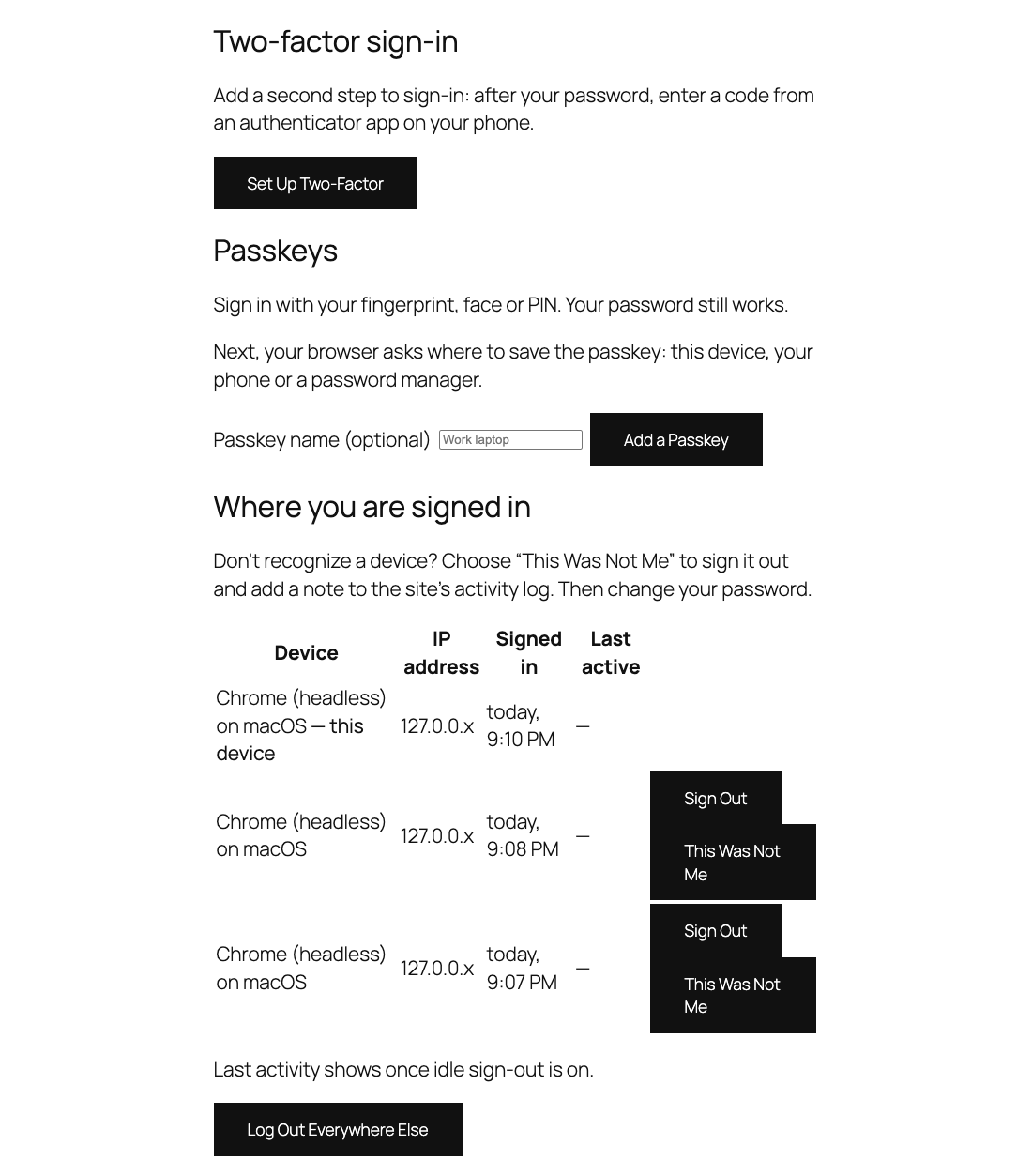
Publish the page. The editor shows an explanation rather than your own security details. On the front end, a signed-in person sees their own two-factor, passkeys and devices. A signed-out visitor sees a Sign in link that returns them to this page after sign-in.
Step 2: Select the Page in BetterShield
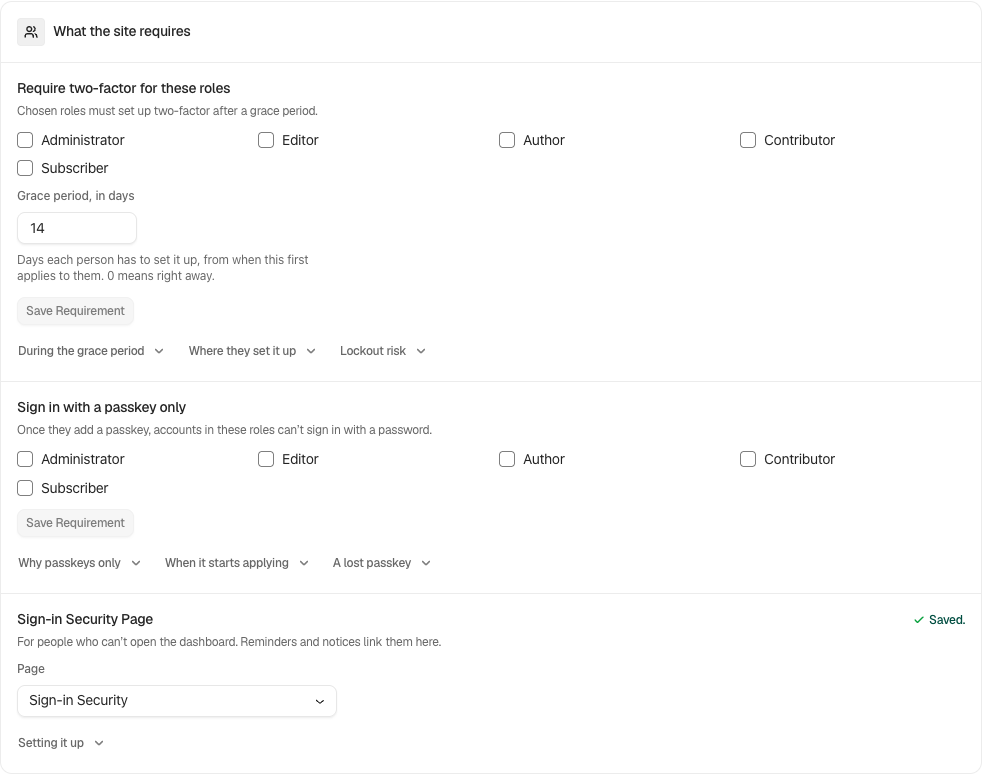
Open BetterShield › Protection › Two-Factor. Under What the site requires, find Sign-in Security Page, then choose your page under Page. The selection saves immediately. The default is None.
This gives members without dashboard access a destination for relevant setup reminders and account notices. It does not give them access to BetterShield’s administrator screens. Eligible WooCommerce customers use My Account › Sign-in security first.
Step 3: Test as a Member
In a separate browser session, sign in as an ordinary member and open the page. Check that they can start two-factor setup, add a passkey on HTTPS, and review their signed-in devices.
Exclude this page from full-page caching. Test your membership restrictions as that member, because publishing a page does not override another plugin’s access rules.
Store Tab Visibility
On WooCommerce sites, Show Sign-in security on WooCommerce My Account appears on the same Two-Factor screen and starts on. Turning it off hides the tab only from customers with no applicable requirement or existing factor. Anyone required by a rule, or already using two-factor or a passkey, still sees it so they can manage their account.
Undo
Set Page back to None to stop directing members to the selected page. This leaves their existing two-factor and passkeys in place. The block or shortcode still displays its controls wherever you have placed it, so review that page separately if you no longer want to offer it.
Final Outcome
Members have a working front-end destination for their own sign-in security. Verify the signed-in controls and signed-out prompt, and confirm that member reminders lead to the selected page.
Related
Getting Stuck? Feel free to contact our Dedicated Support Team.