How To Switch from WPS Hide Login to BetterShield?
Preview your existing sign-in address and dashboard destination, hand the job to BetterShield, and test access before ending your session.
With BetterShield 1.1.7 or newer, preview the sign-in address BetterShield can bring over from WPS Hide Login and the dashboard behavior that will change before handing the job over.
Step 1: Keep Your Way Back In
Keep your current administrator session open, write down the working sign-in address, and save a BetterShield recovery link or recovery codes outside the site. Run Quick Setup again from Settings › General if you have already completed it.
Step 2: Review Coexistence and the Import
In Quick Setup › Coexistence, find the custom sign-in address job. Review the exact address and dashboard destination in the migration preview. Choose Use BetterShield only when the preview can carry the address people already use.
The preview can bring over a supported sign-in address and turn on Dashboard privacy for visitors. WPS Hide Login’s custom dashboard redirect is not copied: the preview lists it as left behind, and signed-out dashboard visitors see page not found instead. To choose a local destination afterward, use Hide the dashboard. A setting that is invalid, conflicts with a WordPress address, or cannot be applied is left out with a reason. If the address cannot come over, the job stays with the other plugin by default. Do not assume recognizing WPS Hide Login means every setting was imported.
Step 3: Complete the Handover
Read the main action and its explanation. Where all shared jobs move and setup can deactivate the source, it offers Migrate & Deactivate. Mixed choices use Save & Continue. If your permissions or a network activation prevent deactivation here, use the indicated Plugins screen with an authorized account.
During a supported handover, both plugins can serve the same address. BetterShield refuses a different address while the other plugin still serves the shared one. Finish the handover before choosing a new address.
Step 4: Test Before Closing Your Session
In a private browser window:
- Open the saved custom address and complete sign-in.
- Sign out and open
/wp-login.php. Confirm the expected theme 404 response after BetterShield has taken over. - Open
/wp-admin/while signed out. Confirm the page-not-found response or local destination shown in your saved settings. - Test a fresh password-reset email and any sign-in links used by members or clients.
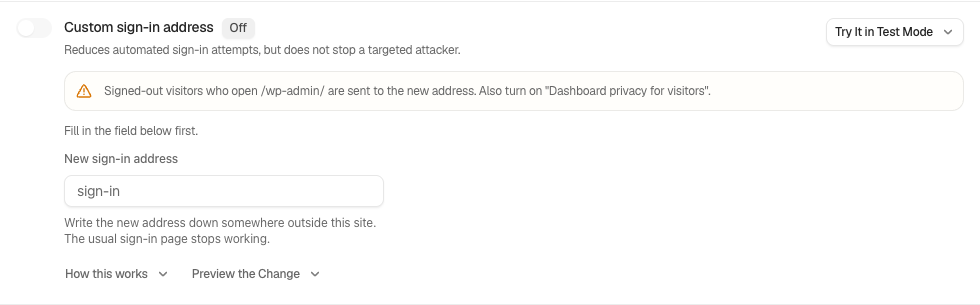
The new address supports 1 to 200 letters, numbers, dashes and underscores and is stored in lowercase. See Change the sign-in address before editing it further.
Undo
Use Activity › Recorded changes to undo supported imported settings. Undo does not reactivate WPS Hide Login. Review which plugin will serve sign-in before reactivating it through Plugins, then repeat the access checks while your administrator session remains open. A BetterShield recovery link pauses its own sign-in protections; another plugin’s rules can still apply.
Final Outcome
The preview’s supported settings are saved, the intended plugin handles the address, and sign-in, reset emails and signed-out dashboard requests work as expected.
Related
Getting Stuck? Feel free to contact our Dedicated Support Team.