How To Review Store Scripts With BetterShield?
Find a flagged store script at its named source, review it with your developer, and accept known code or flag it again.
Use BetterShield to review a flagged store script before you accept it or remove unknown code. This helps you keep verified code separate from scripts that need investigation.
Note: Use BetterShield 1.1.8 or newer on a site running WooCommerce.
The check runs in the background through WordPress scheduled tasks. It is a limited review signal, not proof of compromise or a complete malware scan.
Step 1: Open the Flagged Script
Open ‘BetterShield › Findings’, then open ‘A script on your store may be reading card details’. Read the evidence and note the source named for each script.
Look for saved content, widgets, options, templates, supported snippets or an eligible local script file. A script can be flagged without a file having changed.
Code loaded from another website is not downloaded or inspected. An empty result does not establish that every script is safe.

Step 2: Review and Accept Known Code
Keep the script open under ‘BetterShield › Findings’ and review its named source before choosing an action.
Step 2.1. Review the Named Source
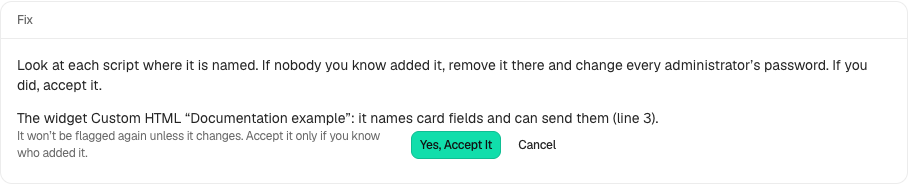
Ask the developer or service responsible for the script to explain what it does, where it sends data and why the store needs it. Do not accept unfamiliar code just to clear the finding.
If you and your developer did not add it, remove it at its source and change every administrator’s password. Keep evidence and seek help investigating how it arrived. BetterShield does not remove the script automatically.
Step 2.2. Accept Verified Code
For code you have checked and deliberately added, select ‘Accept This Script’. Read the consequence, then select ‘Yes, Accept It’ only when you know who added the code.
Acceptance applies to that exact script until its content changes. It does not whitelist every script at the same location.
Step 3: Check or Reverse Your Decision
On the same finding in ‘BetterShield › Findings’, review the accepted script. Open ‘BetterShield › Activity’ to confirm that your decision was recorded.
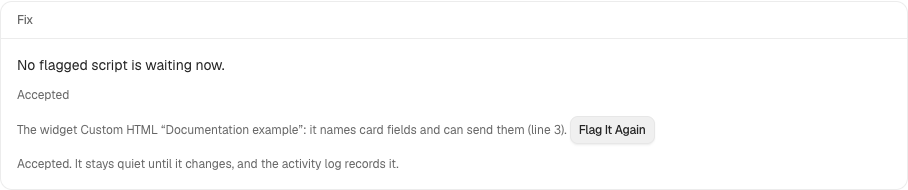
If you need to investigate an accepted script again, select ‘Flag It Again’. This reverses the acceptance; it does not remove the code.
After removing a script at its source, check the next completed background sweep. If scheduled tasks are not running, investigate that before treating an old result as current.
Final Outcome
Your verified script is accepted and its decision is recorded in Activity. Scripts still awaiting review remain separate, and you can return an accepted script to review when needed.
Related
This is how, with the help of BetterShield’s Findings, you can review store scripts and record the ones you have verified.
Getting Stuck? Feel free to contact our Dedicated Support Team.