How To Verify Webhook Signatures With BetterShield Ultra?
Check a custom Ultra webhook's timestamp and raw-body signature, store its signing secret, and replace the secret when needed.
Use BetterShield Ultra to verify a custom webhook before your receiver processes it. Checking the signature and timestamp helps you refuse altered, stale or incorrectly signed messages.
Note: Use BetterShield Ultra 1.0.9 or newer with the free BetterShield plugin installed and active. Your receiver must be able to read the raw request body.
This guide covers ‘Other service (webhook)’ using standard JSON or NDJSON. Native chat destinations, syslog and collector presets such as Splunk, Datadog and Elastic use their own delivery arrangements.
Step 1: Save Your Signing Secret
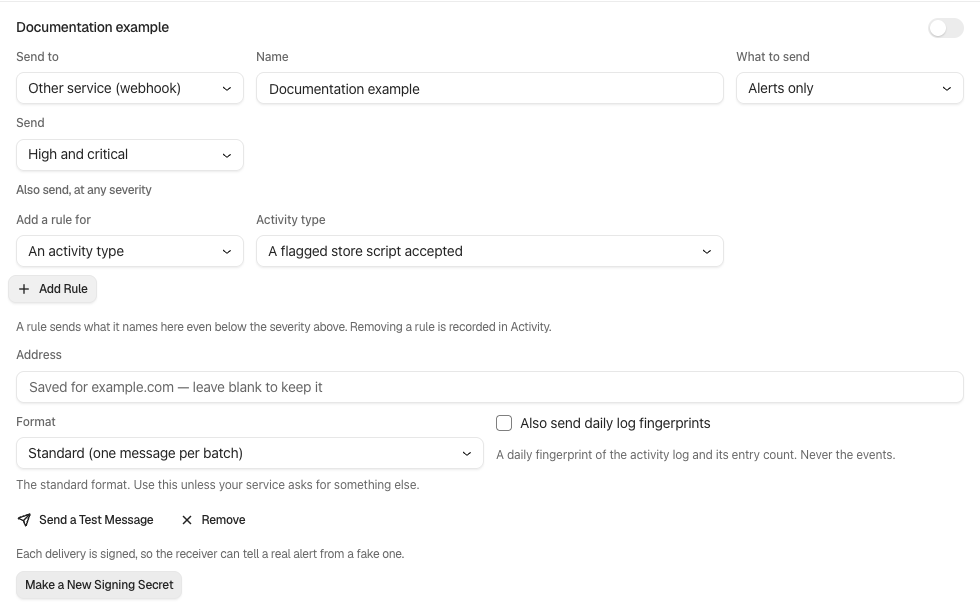
Open ‘BetterShield › Ultra › Alert channels’ and add a custom webhook destination. When you save a new supported destination, copy its ‘Signing secret’ into the receiver’s private configuration.
The secret is shown once. Store it before leaving the screen, and keep it outside source control and browser code.
An existing destination may say its deliveries are not signed yet. Select ‘Make a Signing Secret’, then store the newly shown value at the receiver.
Each destination has its own secret. A connector’s access key is a separate credential.
Step 2: Verify and Test Deliveries
In your receiver’s request handler, verify the headers and exact body bytes before processing the message. Use the secret saved from ‘BetterShield › Ultra › Alert channels’.
Step 2.1. Check the Headers
Read these headers:
X-BetterShield-Timestamp: the signing time in Unix seconds.X-BetterShield-Signature:v1=followed by the hexadecimal HMAC-SHA256 signature.
Reject missing or malformed headers. Refuse a timestamp more than five minutes away from your receiver’s current time, including one too far in the future. Keep both servers’ clocks accurate.
Step 2.2. Verify the Raw Body
Keep the exact request bytes. Do not parse and reserialize JSON, normalize whitespace or remove NDJSON line endings before verification.
Compute HMAC-SHA256 using the full signing-secret string as the key and this message:
timestamp + "." + raw request body
Compare equal-length signature bytes in constant time. For a Node.js receiver, use this function with the raw body as a Buffer and the two header values as strings:
import { createHmac, timingSafeEqual } from 'node:crypto';

export function verifyDelivery(rawBody, timestamp, signature, secret, now = Date.now()) {
  if (!/^\d+$/.test(timestamp) || !/^v1=[a-f0-9]{64}$/.test(signature)) return false;
  const seconds = Number(timestamp);
  if (!Number.isSafeInteger(seconds) || Math.abs(now / 1000 - seconds) > 300) return false;
  const expected = createHmac('sha256', secret)
    .update(timestamp + '.')
    .update(rawBody)
    .digest();
  const received = Buffer.from(signature.slice(3), 'hex');
  return received.length === expected.length && timingSafeEqual(received, expected);
}
Process the message only after this returns true. The same verification applies to supported alert, full-activity and checkpoint deliveries.
Step 2.3. Test Acceptance and Refusal
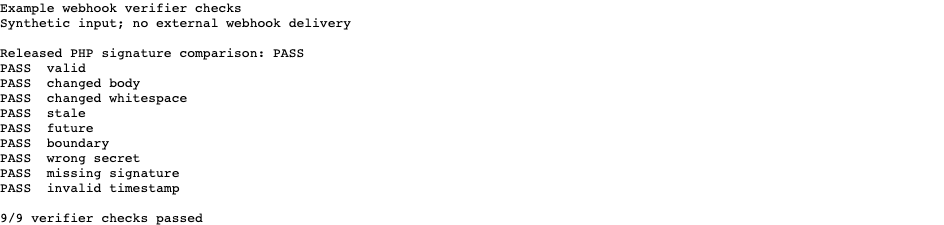
With synthetic input at your receiver, confirm these results:
- An unchanged body with a matching signature and current timestamp passes.
- Changing one byte or its whitespace without signing again fails.
- A correctly signed message older than five minutes or too far in the future fails.
- Missing headers and a signature made with another destination’s secret fail.
Return to ‘BetterShield › Ultra › Alert channels’, save the destination, then select ‘Send a Test Message’. Inspect the actual receiver’s response as well as WordPress’s delivery result.
If you must process each event only once, keep a receiver-side record of deliveries already processed. A valid signature alone does not prevent repeat processing within the freshness window.
Step 3: Replace a Signing Secret
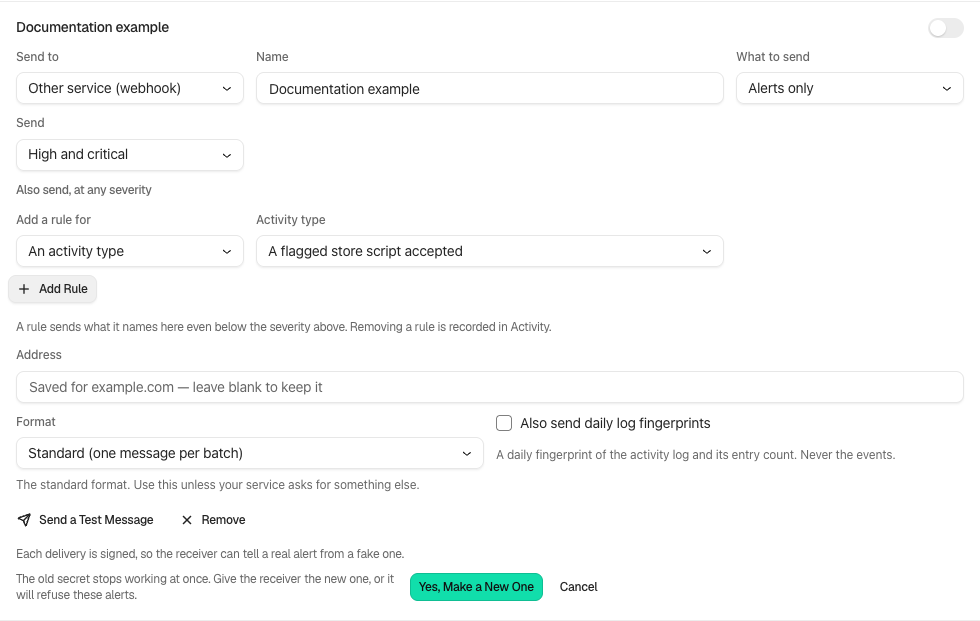
In ‘BetterShield › Ultra › Alert channels’, select ‘Make a New Signing Secret’ for the saved destination. Read the consequence, then confirm ‘Yes, Make a New One’.
The old secret stops working immediately. Give the new secret to the receiver and test again. Deliveries can be refused during the changeover.
A Hub workspace webhook has its own destination and secret. Do not reuse an Ultra site’s secret for that separate connection.
Final Outcome
You have a destination secret and a verifier that accepts authentic current input while refusing altered, stale or incorrectly signed input. Confirm a real test delivery at your receiver before relying on it.
Related
This is how, with the help of BetterShield Ultra’s webhook signatures, you can verify deliveries before processing them.
Getting Stuck? Feel free to contact our Dedicated Support Team.