How To Automatically Update Vulnerable Plugins With BetterShield Ultra?
Enable a bounded vulnerable-plugin update policy and check the front page, store pages and your chosen pages after an update.
Use BetterShield Ultra to update eligible vulnerable plugins under rules you choose. Select the pages checked around an update so you can review a failed response and any rollback.
Note: Use BetterShield Ultra 1.0.9 or newer with the free BetterShield plugin installed and active. Enable vulnerability checks and obtain a successful, current advisory result first.
The policy starts off. It pauses in recovery safe mode, without advisory data or with stale data. It does not require activation of a separate request-rule service.
Step 1: Check Updates and Recovery
Open ‘BetterShield › Ultra › Automatic response’ and read ‘Plugins it would act on now’. Check the advisory status before enabling changes; a preview is not a record of an update already performed.
Keep a restorable backup, including the database. An eligible update needs an available publisher update, host write access and a usable rollback copy.

Step 2: Set Your Update Rules
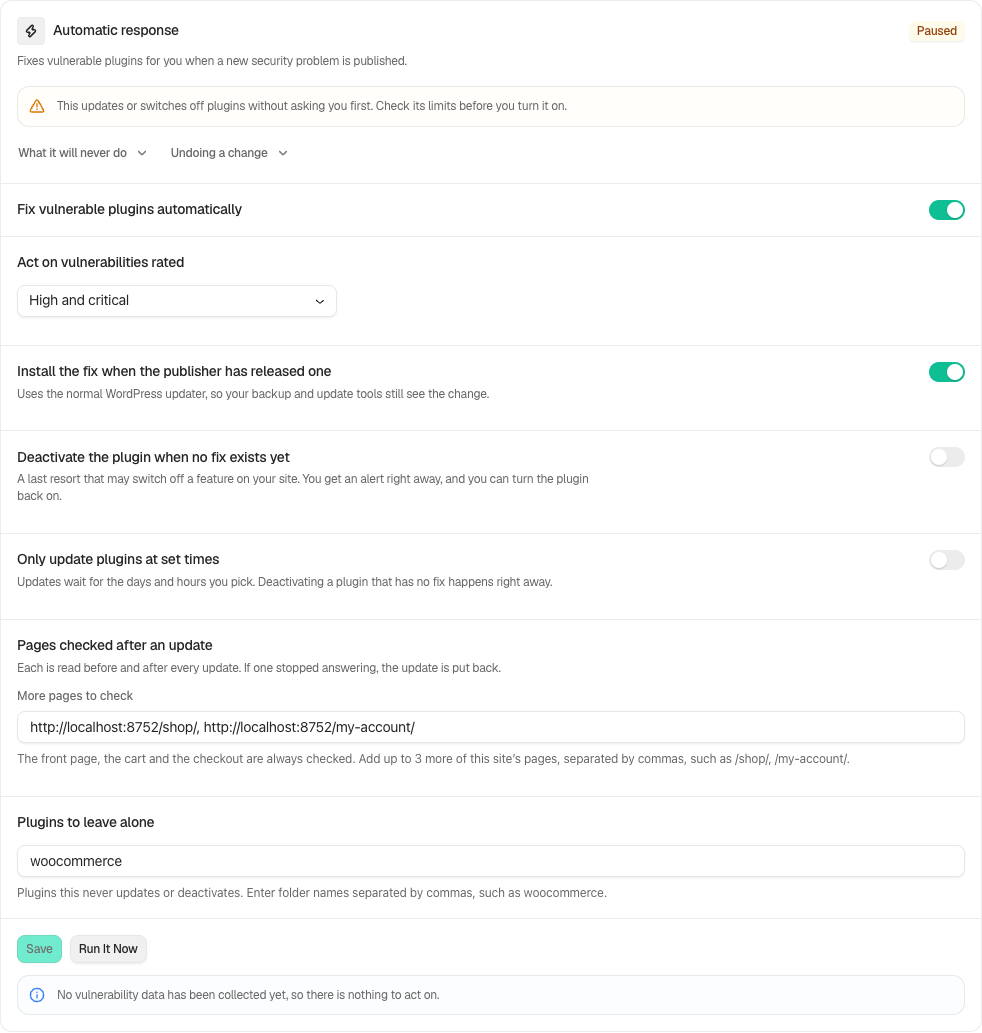
On ‘BetterShield › Ultra › Automatic response’, turn on ‘Fix vulnerable plugins automatically’ when you are ready to configure the policy.
Step 2.1. Choose Actions and Exclusions
Review these settings:
- ‘Act on vulnerabilities rated’: choose ‘Critical only’ (the initial value) or ‘High and critical’.
- ‘Install the fix when the publisher has released one’: turn this on to permit eligible updates. It starts off.
- ‘Deactivate the plugin when no fix exists yet’: this starts off too. Allow it only after considering which feature could stop working.
- ‘Plugins to leave alone’: enter plugin folder names separated by commas, such as
woocommerce. The policy does not update or deactivate excluded plugins.
Step 2.2. Choose Update Times
Use ‘Only update plugins at set times’ if updates should wait for chosen days and hours. Times use the site’s time zone. Deactivating a plugin with no fix does not wait for this update window.
Select ‘Save’. A manual run uses the saved rules, not unsaved fields. Delay ordinary automatic updates is a separate control.
Step 3: Choose Pages to Check
On the same ‘BetterShield › Ultra › Automatic response’ screen, find ‘Pages checked after an update’. The front page is always checked; configured WooCommerce cart and checkout pages are included too.
Under ‘More pages to check’, add up to three additional same-site pages, separated by commas. For example:
/shop/, /my-account/, /contact/
Select ‘Save’ after changing the list. The checks compare HTTP responses and fatal-error signals before and after an update. They do not sign in, fill forms, take payment or complete a purchase.
A page that could not be read before the update is excluded from the comparison.

Step 4: Review Results and Rollbacks
Return to ‘BetterShield › Ultra › Automatic response’ after a run and read ‘What it did’. Review ‘BetterShield › Activity’ for the recorded actions.
Check each result and skip reason. A completed run does not mean every listed plugin changed.
If a checked page fails after an update, Ultra reads it once more. Both after-update checks must fail before it attempts to restore the saved plugin files.
Review whether that rollback succeeded, then test the affected pages yourself. Restoring old files also restores the vulnerability they contain. It does not reverse database migrations or other data changes.

Stop Future Automatic Updates
Turn off ‘Fix vulnerable plugins automatically’ on ‘BetterShield › Ultra › Automatic response’, then select ‘Save’. This stops future policy updates without undoing completed changes.
Keep exclusions for plugins that require supervised testing. New code can change a site even when page checks pass. A rollback can fail if its saved copy is unavailable or files cannot be written.
Final Outcome
Your chosen actions, exclusions and pages are saved in the policy. Confirm that current advisory data is available, then review each run and test the site’s real workflows.
Related
This is how, with the help of BetterShield Ultra’s Automatic response, you can set a vulnerable-plugin update policy and review its page checks.
Getting Stuck? Feel free to contact our Dedicated Support Team.