How To Block IPs at Cloudflare With BetterShield Ultra?
Block eligible addresses from BetterShield's sign-in blocklist across your site at Cloudflare, with a preview and a way to remove the blocks.
With BetterShield Ultra 1.0.10 or newer, block eligible addresses before they reach any page of your site. Reuse your saved sign-in blocklist instead of maintaining a second list at Cloudflare.
Note: Keep the free BetterShield plugin installed and active. This control needs WordPress 7.0 or newer, a connected Cloudflare token and the correct zone. On multisite, use the network dashboard as a network administrator.
What It Does
The free plugin’s Never allowed to sign in list refuses sign-in. Block your blocklist on the whole site also sends eligible address-only entries to Cloudflare, where they are blocked before reaching any page. It uses the same saved list, so there is no second blocklist to maintain.
The switch starts off. This control is separate from temporary sign-in lockout challenges.
Step 1: Review the Sign-in Blocklist
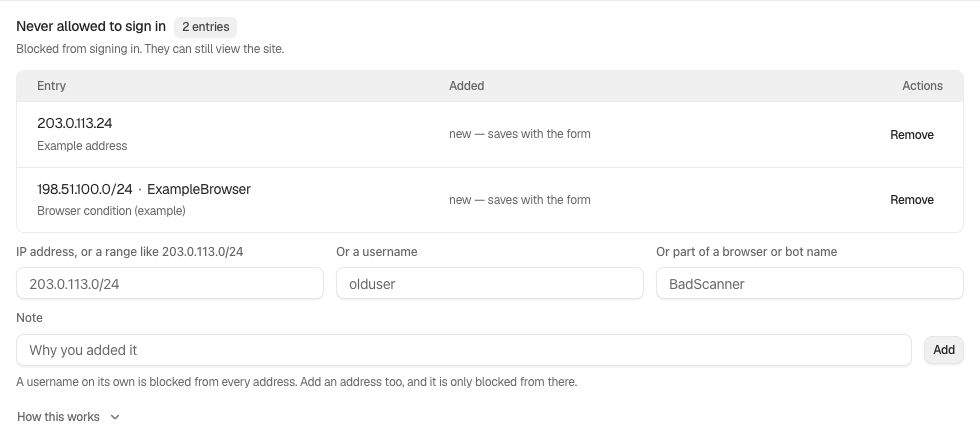
Open BetterShield › Protection › Login & Access › Allow and block lists. Review the addresses and ranges under Never allowed to sign in, then save any intended changes. Follow Allow and block lists if you need to add an entry.
Only entries containing an address or range alone can go to the edge. An entry that also names a username or browser stays at sign-in, because blocking its whole range would affect more people than the entry specifies.
Step 2: Read the Cloudflare Preview
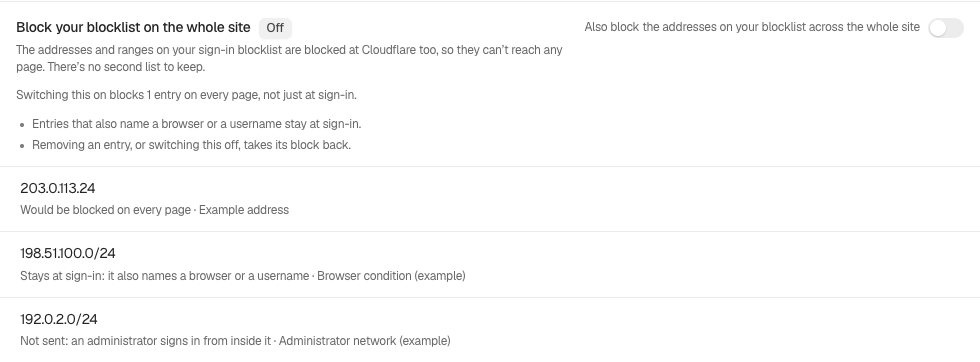
Open BetterShield › Ultra › Cloudflare, then find Block your blocklist on the whole site. Before switching it on, read what will happen to each entry and the total that would be blocked.
- A single IP address can be sent. Supported ranges are IPv4
/16or/24, and IPv6/32,/48or/64. - A range Cloudflare cannot accept stays at sign-in.
- An entry covering your current address, a network an administrator signs in from, or an address on Always allowed is not sent.
Step 3: Enable and Check the Blocks
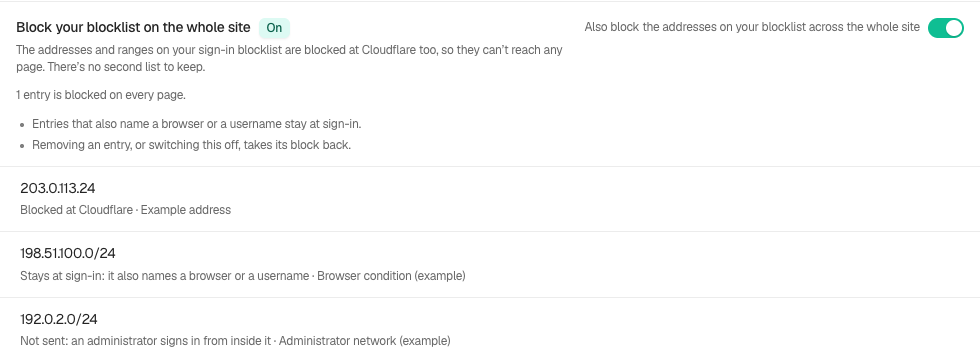
Turn on Also block the addresses on your blocklist across the whole site. Read the saved result and each entry’s status. Blocked at Cloudflare means the entry has reached the edge; Waiting to be sent means it has not reached it yet. A saved switch alone is not confirmation that every entry is blocked.
Review any refused or waiting entries before adding more. Changes to the saved blocklist are synchronized while the control is on.
What It Can Affect
An edge block applies to public pages, forms and automated connections from that address, as well as sign-in. It can also prevent a recovery link from reaching WordPress from a blocked address. Keep access to your Cloudflare account and review shared office or service ranges carefully.
A staging copy sends no Cloudflare changes. Safe mode prevents new edge changes. Read the screen’s status before assuming a change has reached Cloudflare.
Undo
Remove the entry from Never allowed to sign in and save, or turn off Also block the addresses on your blocklist across the whole site. Ultra takes back the blocks made by this control. Turning this switch off leaves the sign-in list itself in place.
If WordPress is unreachable, use Cloudflare directly to review and remove the relevant BetterShield block.
Final Outcome
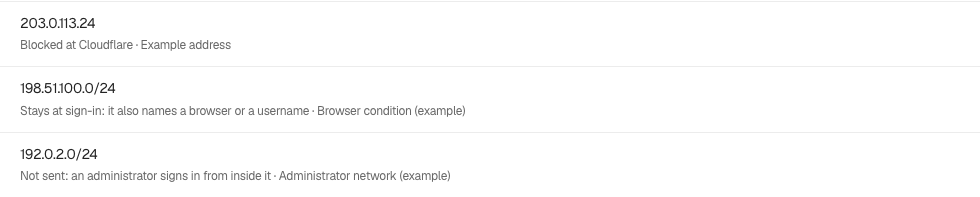
The intended entries show Blocked at Cloudflare, and excluded entries explain why they remain at sign-in or are not sent. Confirm important site journeys from an unblocked connection. After removing a block, check that its address can reach the site again.
Related
This is how you can use BetterShield Ultra to block eligible sign-in blocklist addresses across your site at Cloudflare.
Getting Stuck? Feel free to contact our Dedicated Support Team.